Two tracks:
User guide for the GPR Insights software itself, and GPR fundamentals for anyone new to the discipline.
Getting started with GPR Insights
GPR Insights is an intelligent software with an intuitive workflow for advanced post-processing, visualisation, analysis and interpretation of ground-penetrating radar data. Web-based or standalone on Windows.
Two ways to run it
The same functionality is available in both modes — the only thing that changes is where the processing happens.
Version
What you need
Web
No installation — runs in any browser on any OS. Requires a stable internet connection (above 100 Mbps recommended).
Bookmark: workspace.screeningeagle.com/app/gprInsights
Standalone
Windows 10 or newer, 64-bit. Internet required only to launch and create projects.
Third-party single- and multi-channel devices from different manufacturers plus the industry-standard SEGY format.
Activating your license
After subscribing you'll receive a PDF with instructions. Web licenses activate from Workspace → My Subscriptions → Activate. Pro licenses must be activated for the first time from the dekstop app.
4Web ↔ Standalone session rules
Only one active session at a time. To switch from web to standalone, end the active session first ("End Session" button at the top right of the web app or from within the standalone)
Projects created on web are not auto-synced to standalone, and vice versa. Download or upload the project explicitly to work on it on the desired version.
The GPR Insights interface
Two screens: the Project list and the main workspace with its six bounded regions.
1The Project list
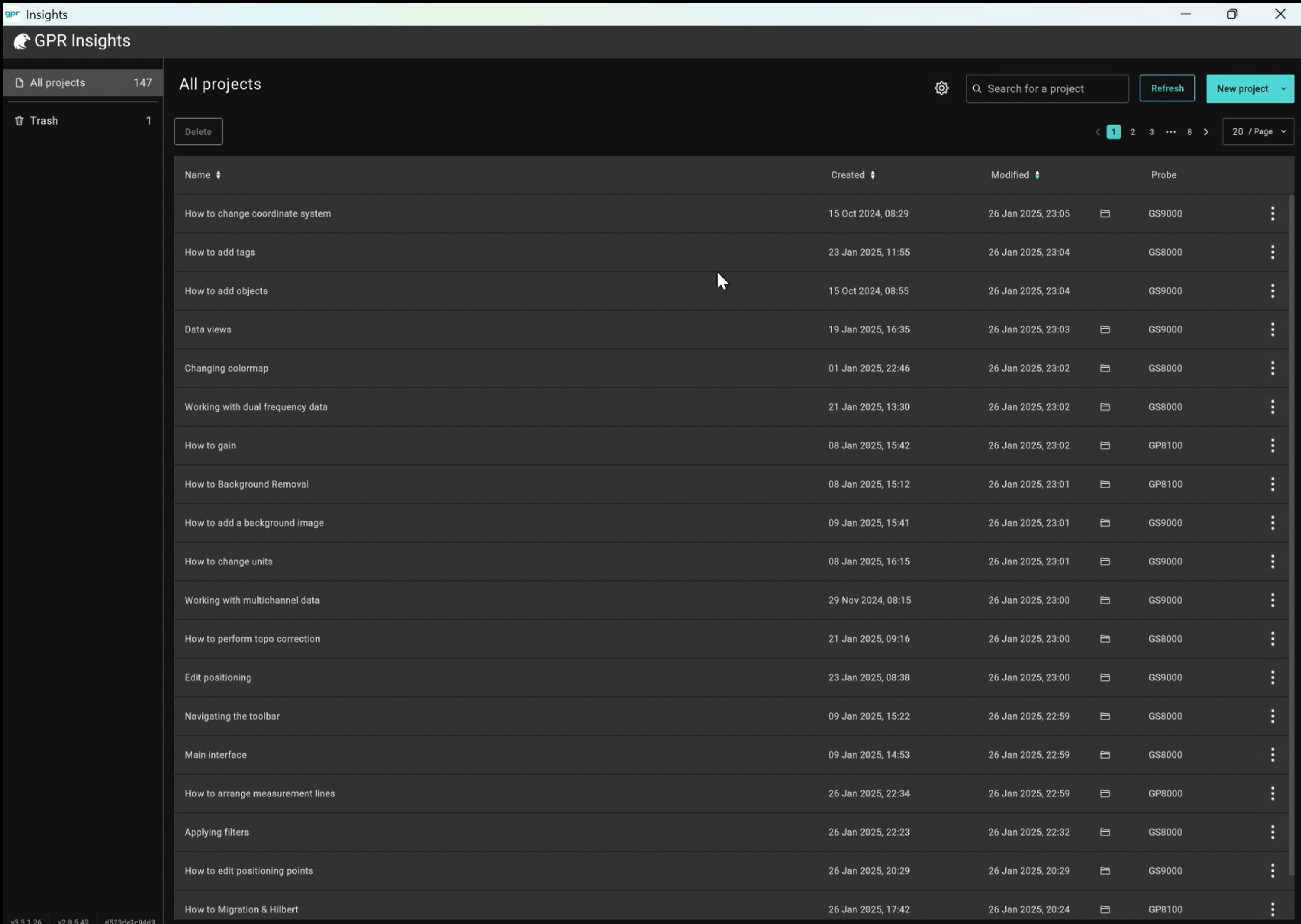
The home screen you land on after starting the software. Create a new project by clicking New project. Each project tile gives you rename, share and delete actions. User preferences (units, colormaps, processing presets) can be set from the User Preferences.
2The main workspace
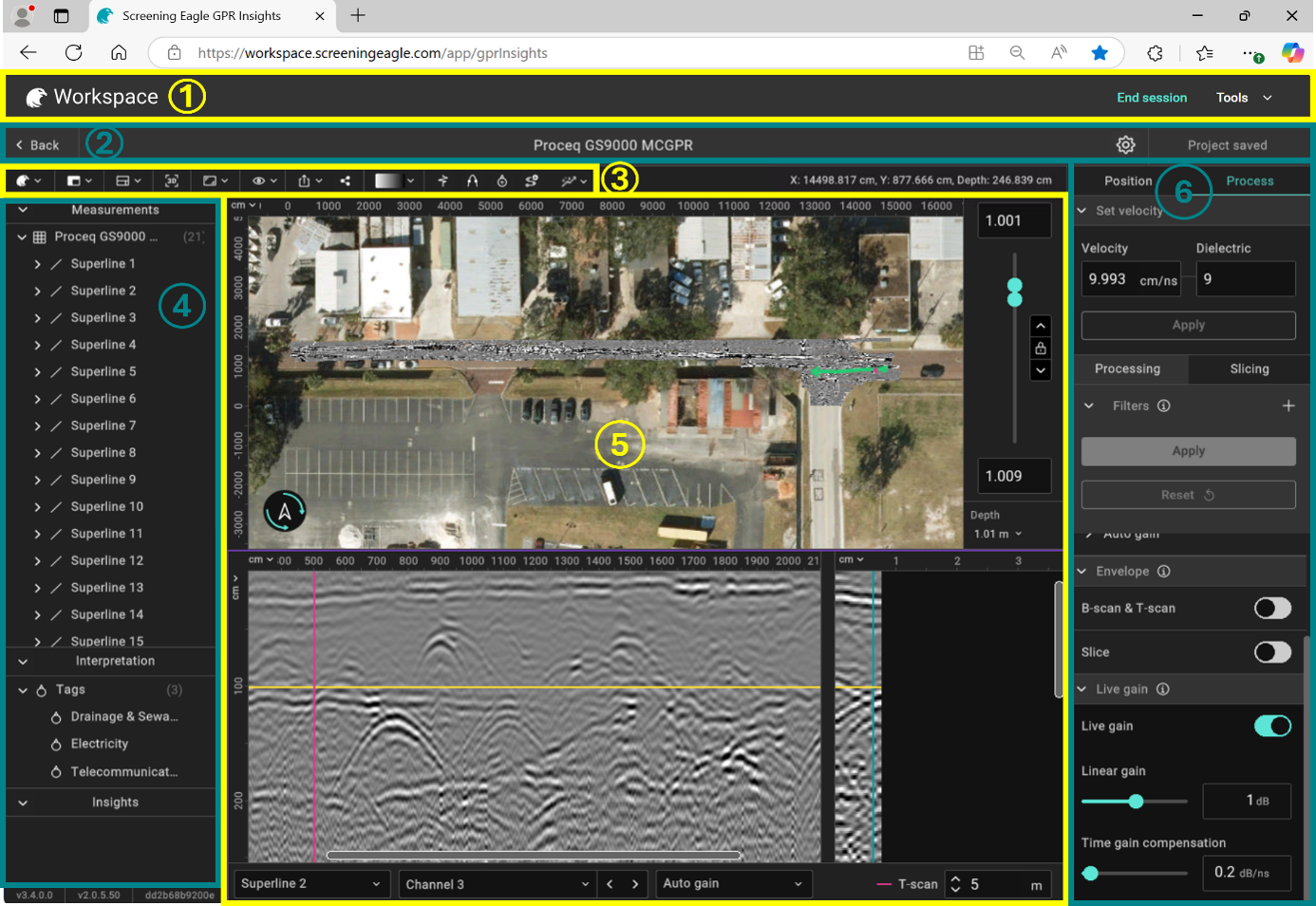
Opening a project will load the main interface screen, split into six regions.
Schematic of the main workspace.
Region
ITems
1 · Workspace bar
End Session button and Share session and support tools.
2 · Top panel
Global actions: Project name, project saving status and changing user preferences.
3 · Toolbar
Quick access to most-used tools — View modes, Add Tags, Create Object, Set Velocity, Analytics, 3D view, Colormaps and others.
Main visualization window with A-scans, B-scans, T-scans and slices.
6 · Right panel
Process and Position editings tabs. Also contextual settings based on selection ( a tag, an object, an AI map), relevant settings open here.
3The in-focus window
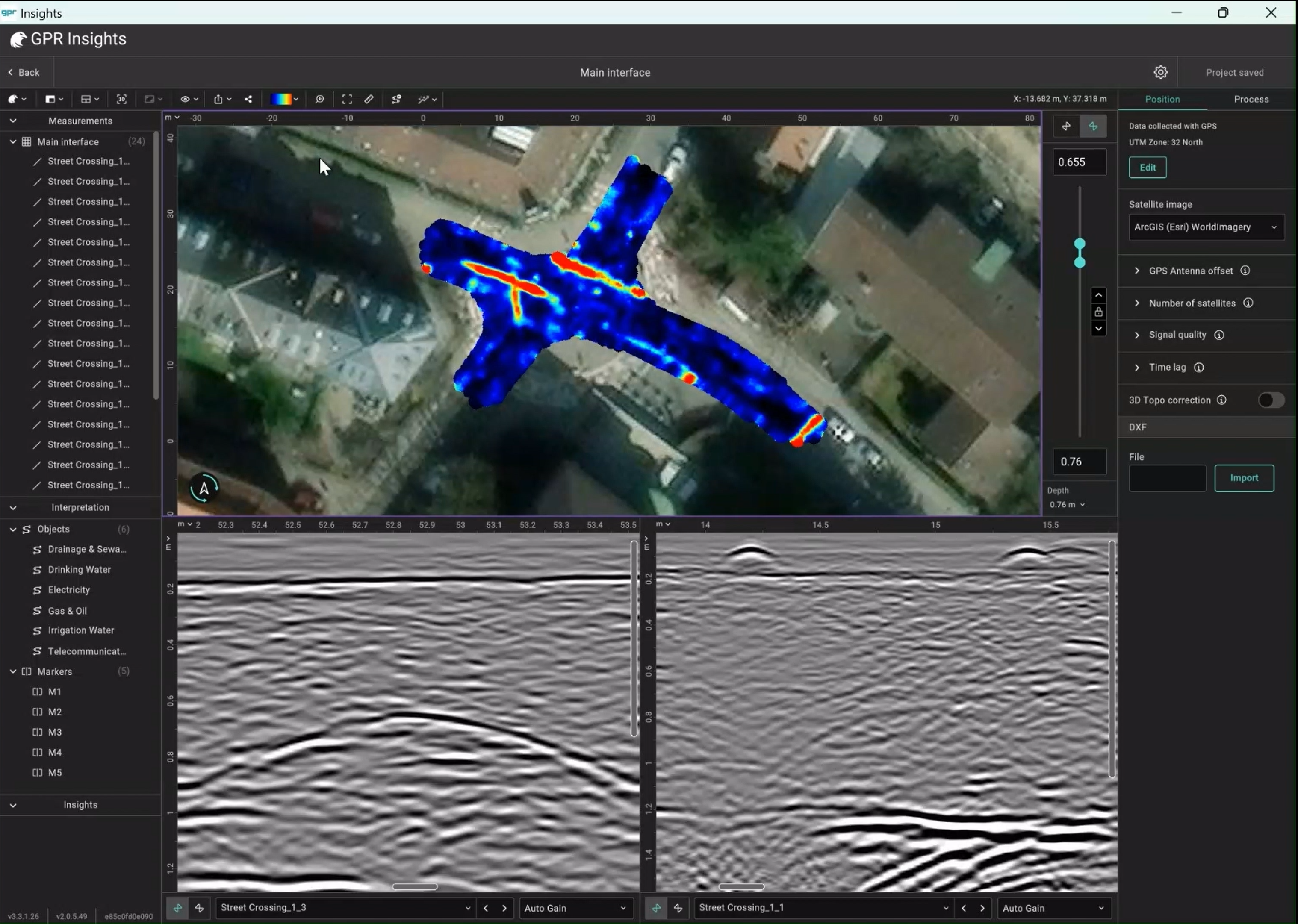
Inside the data view, the window outlined in magenta is the "in-focus" window. Toolbar buttons act on it and different tools will show. Click on any window to give it focus.
Position & topographic correction
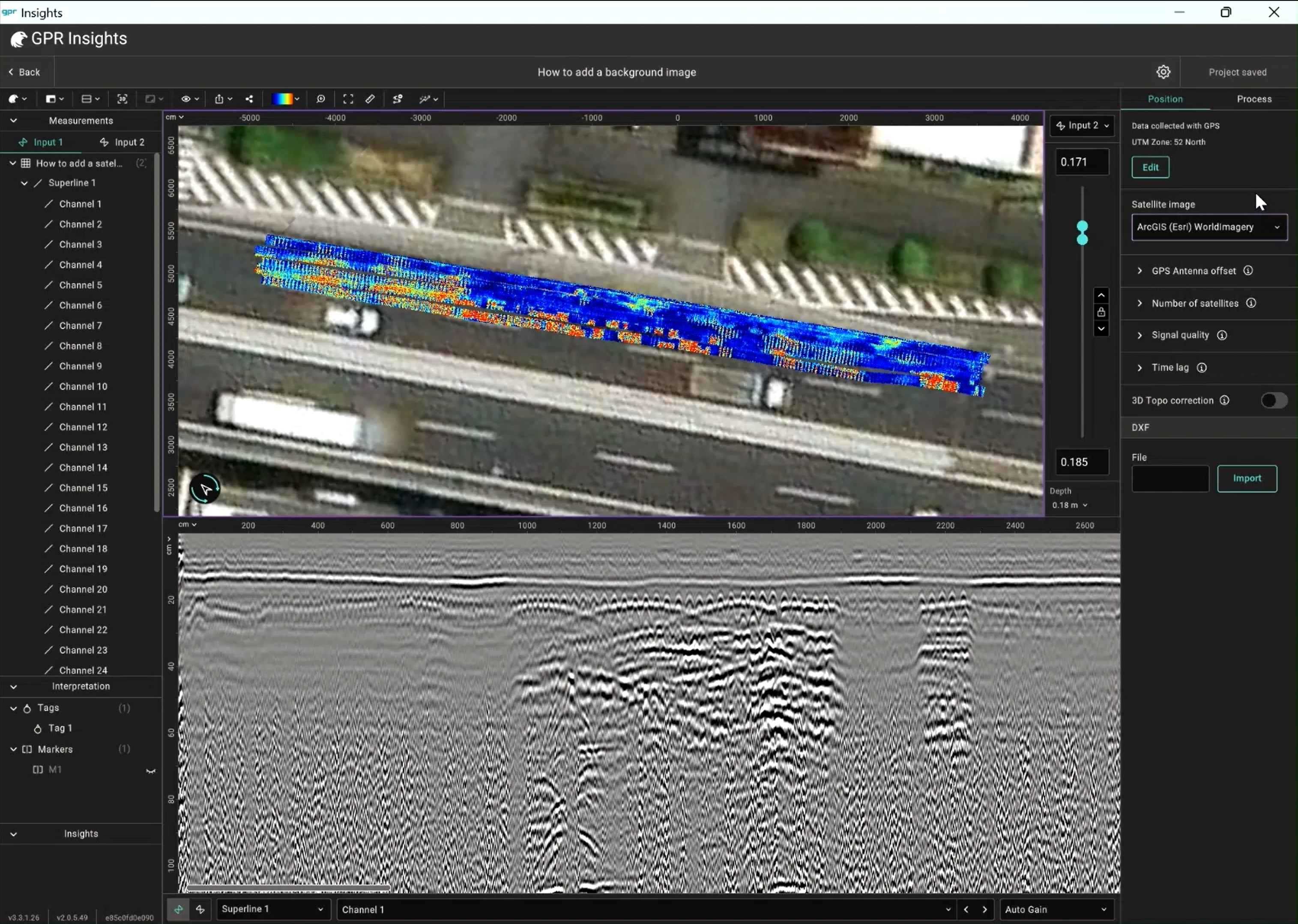
If the data is in the wrong place, objects will also be marked at incorrect locations. Position tools live in the Position tab with separate workflows for geolocated and non-geolocated surveys.
Non-geolocated data
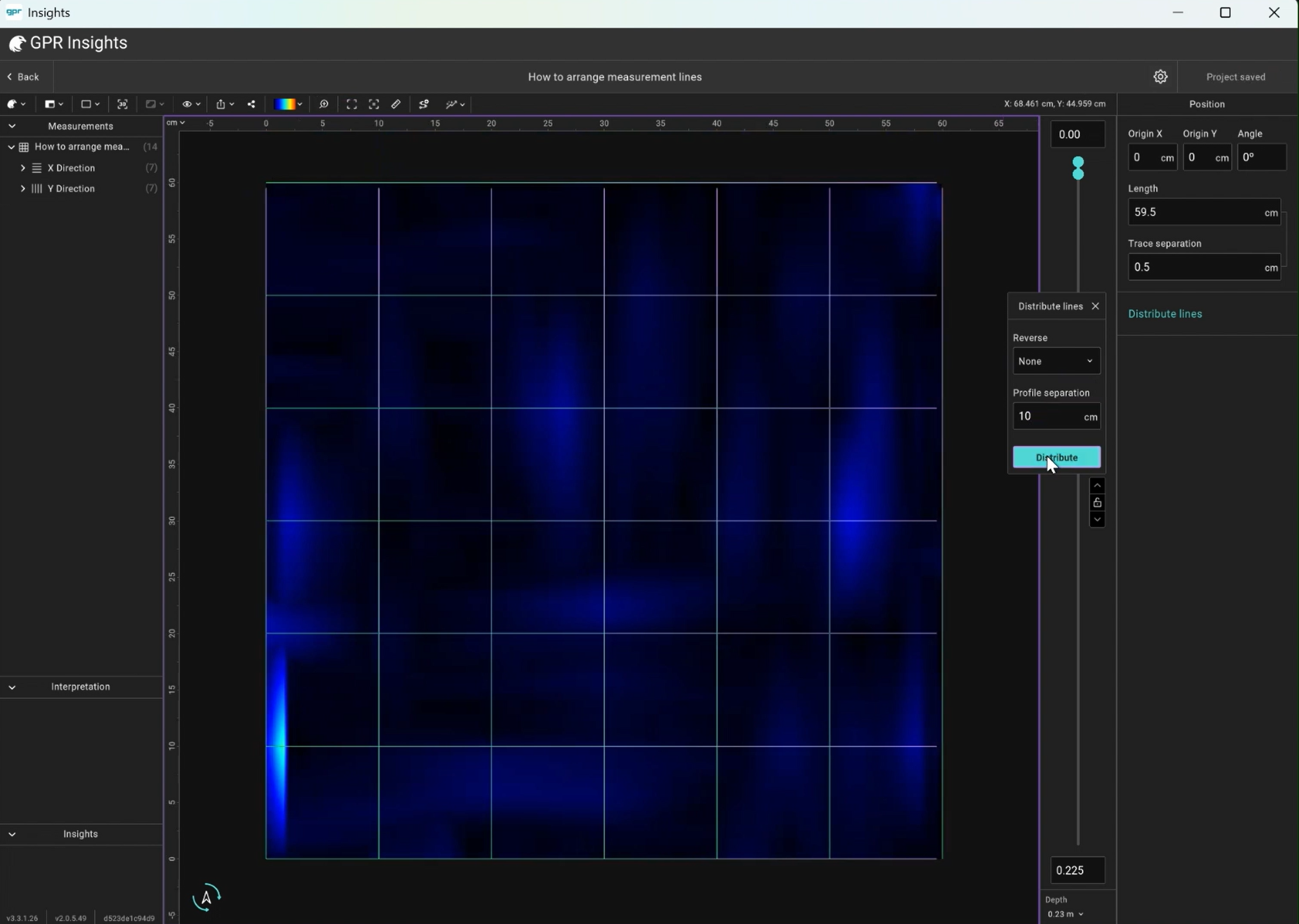
For surveys collected without GPS (commonly indoors). Set the survey origin and the grid orientation manually in the Position tab. The imported grid can be quickly organized by distributing them based on the profile spacing or individual X, Y offsets and angles. By clicking on an individual line, a “Position” section will appear on the right panel, from which we can change the X, Y origin and offset of this specific measurement line and its direction
By clicking on the “X Direction” or “Y Direction” in the Measurements section, the Position section will appear on the right panel from where the
“Distribute lines” feature can be used to distribute the lines automatically by setting the profile separation.
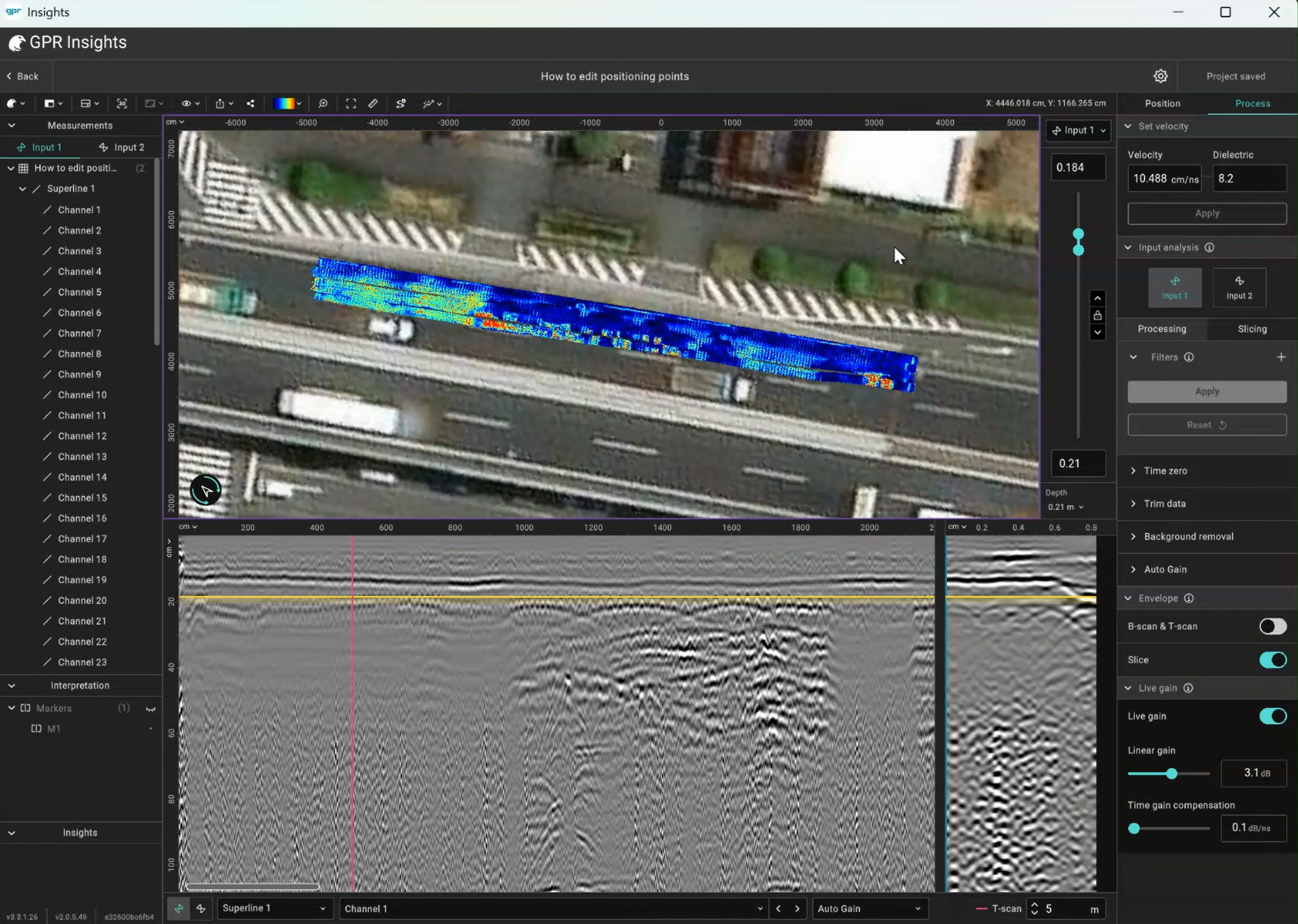
Click the Edit trajectory icon and you can drag individual points to their correct locations on the slice. Each point can be restored to its original location at any time, and you can disable any of the points defining the trajectory. Click Done on the toolbar to apply.
Geolocated data
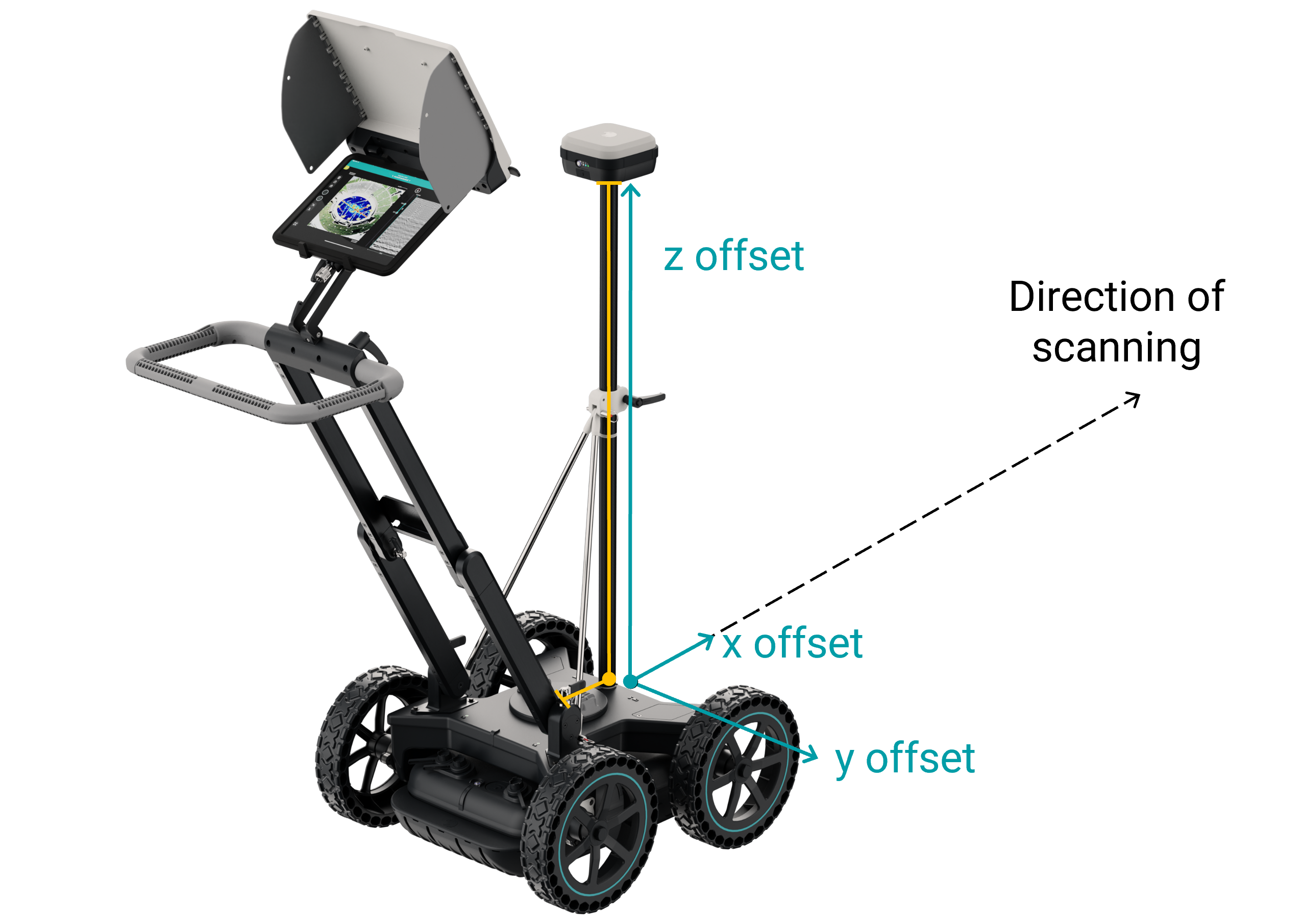
GPS antenna offset
The GPS antenna usually has an offset from the GPR antenna. Its vertical (z) offset is always present. Its horizontal (x, y) offset depends on how the antenna is mounted. Set them under Position → GPS antenna offset by entering the measured distances. For our probes, these are automatically set at project creation. Note that the X and Y offsets can also take negative values for some probes (e.g. GM8000) depending on where the GPS antenna is mounted.
Z offset accounts for the height of the GPS antenna above the GPR probe. X / Y offsets correct for any horizontal mounting offset between GPR and GPS antennas. All three sit under Position → GPS antenna offset.
3Filtering noisy GPS
GPS quality varies across a survey especially across large areas. Fewer satellites and lower signal quality both translate to imprecise positioning. Three filters can filter out the unreliable points. slices:
Minimum satellites: Discards points collected with less number of satellites than your threshold. With more satellites in view, the fix is more reliable.
Minimum signal quality Four ascending levels: Single < DGPS < Float < Fixed. Set a level and anything below is dropped. Fixed is the best and typically achievable with RTK corrections.
Latency correction: Shifts the GPR data in time to align with the GPS stream when there's a time lag between the two. Lag of even a fraction of a second can offset your data by several centimetres.
Manual trajectory editing
Trajectories can be edited manually for each line. By selecting the line from the Measurements, the Edit line option appears on the toolbar, which can be used to adjust the trajectory manually. When clicking on the icon, the trajectory line with points appears, which can be adjusted by clicking and dragging the points to the desired locations.
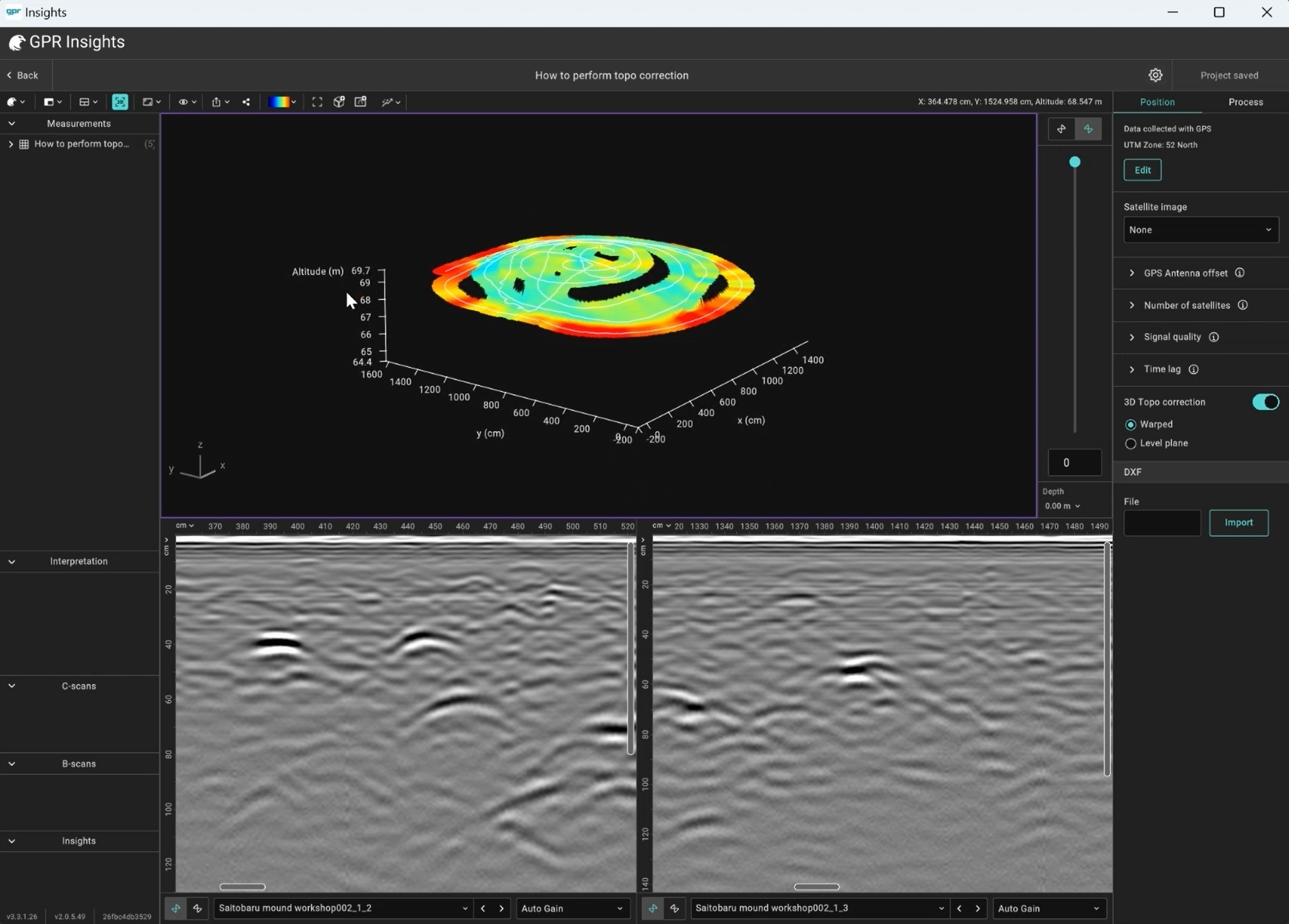
4Topographic corrections
GPR data is often collected along sloped or uneven surfaces. Without correction, the subsurface features appear deeper or shallower than they really are. Topographic correction adjusts the data to account for surface elevation, so depths are interpreted correctly.
Topo correction is available only in Advanced slicing. Switch via Process → Slicing first and then choose a mode:
Mode
What it does
When to use
Warped
Bends the volume of time slices to follow the terrain.
When you need to preserve the true geometry of the surface in 3D views.
Level plane
Topographically corrects the B-scans first, then makes flat horizontal slices.
When you want clean horizontal slices at constant depth below the surface.
To see the result, enable the 3D view from the toolbar after applying topo correction. Vertical exaggeration (also on the toolbar) often helps when terrain variations are small.
5Coordinate systems
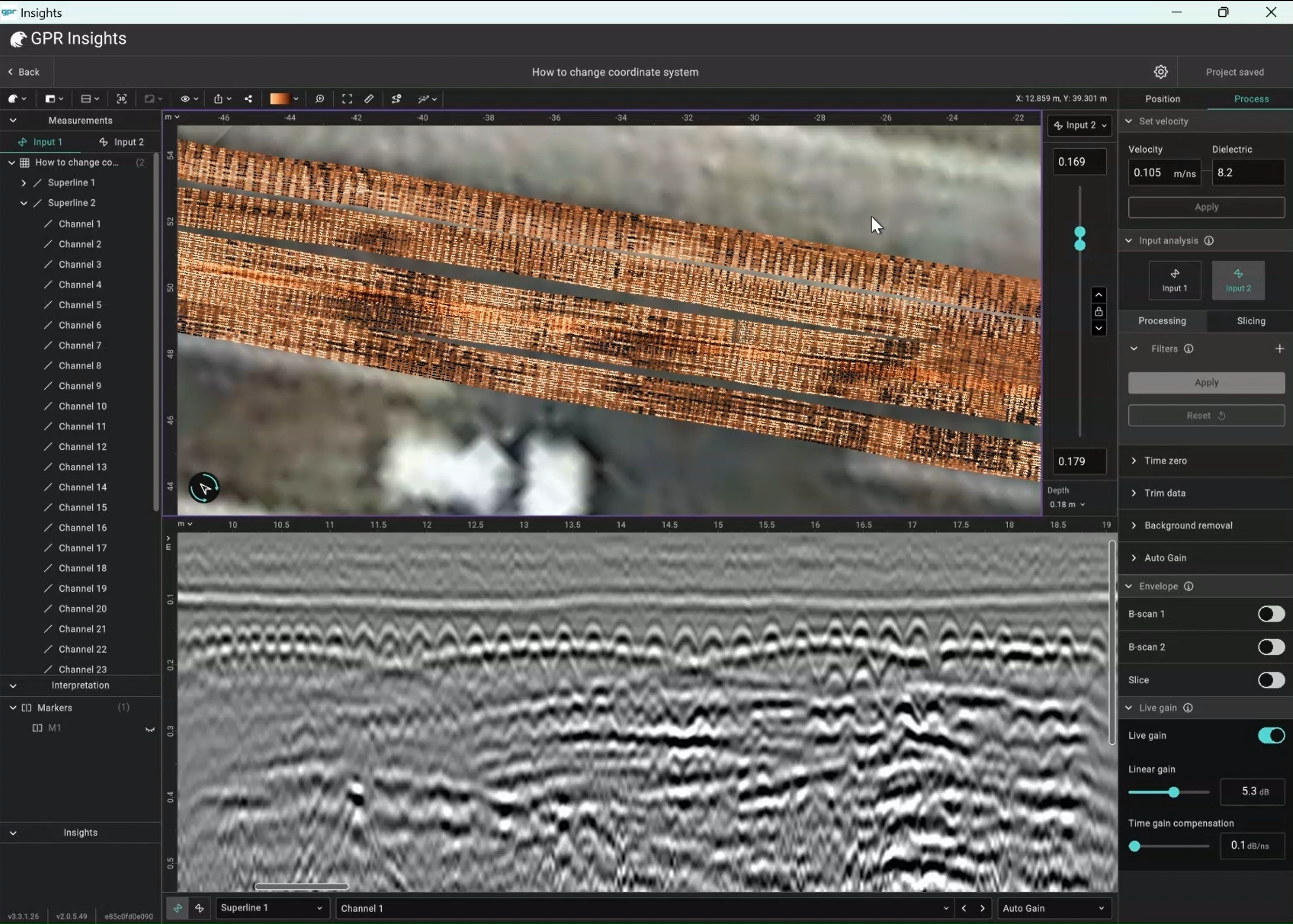
Insights isn't limited to a single coordinate system. Click Edit at the top of the Position tab to switch projections:
UTM zone Pick the UTM zone that covers your survey area. Default for most international work.
Country-specific Choose a national coordinate system that represents better the survey area in your country.
All georeferenced export formats from GeoTIFF, DXF, Shapefile and others can be exported at the desired coordinate system.
Processing filters
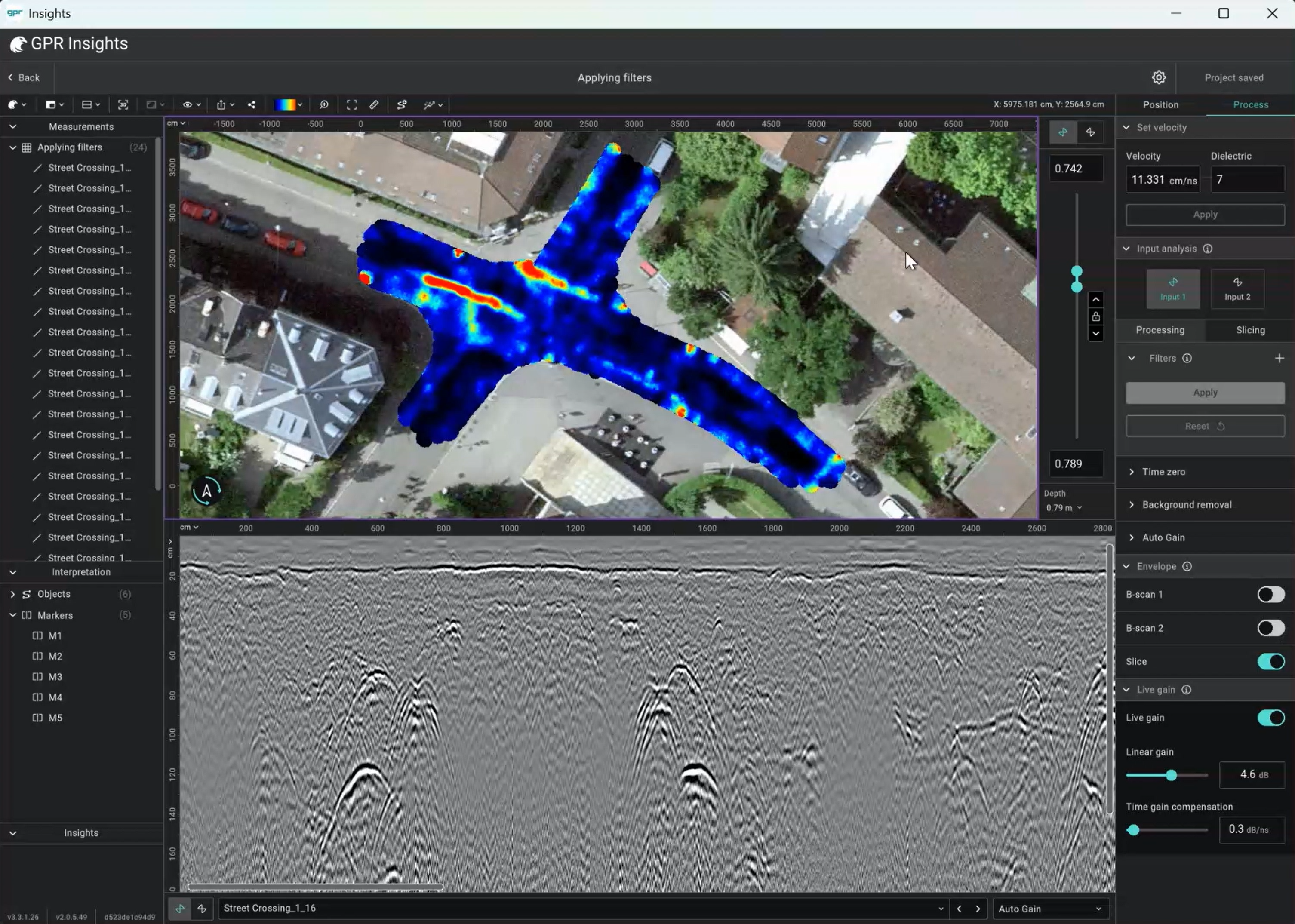
All filters are added from the Process → Processing tab by clicking the + next to Filters. Drag to reorder and click Apply to execute the pipeline — nothing runs until you do.
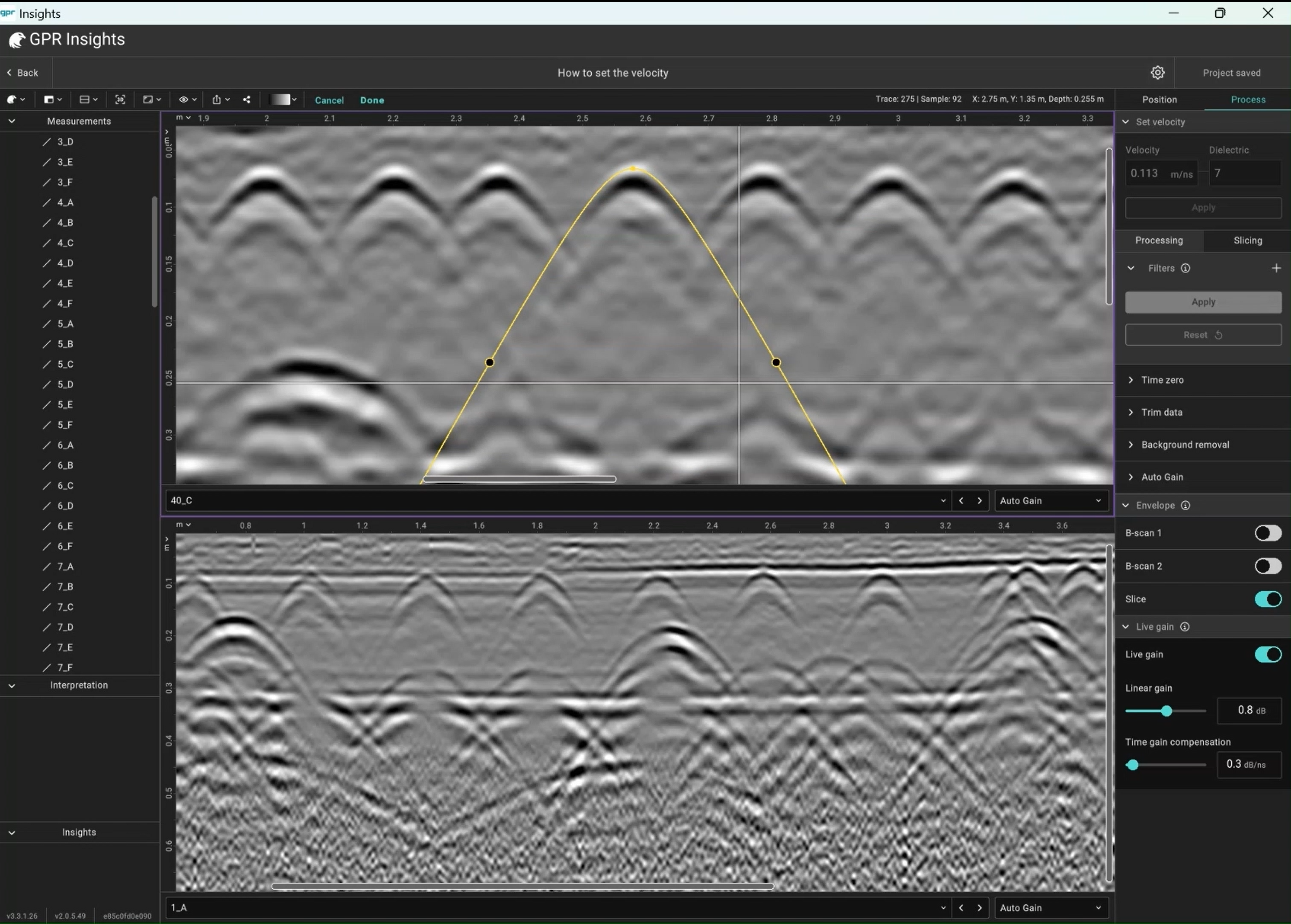
1Set velocity (via hyperbola fitting)
Before applying gain or migration, set the EM-wave velocity for the medium (e.g. concrete, soil). Enter the velocity or dielectric constant directly, or, if unknown, use Hyperbola Fitting on a B-scan: click Set Velocity in the toolbar, drag the yellow apex onto a real hyperbola, shape it to match, and click Done. The dielectric updates automatically.
Note
For hyperbola fitting, a hyperbola needs to exist in the data and to give an accurate velocity, the scanning direction must be perpendicular to the long axis of the target (rebars, pipes, etc.).
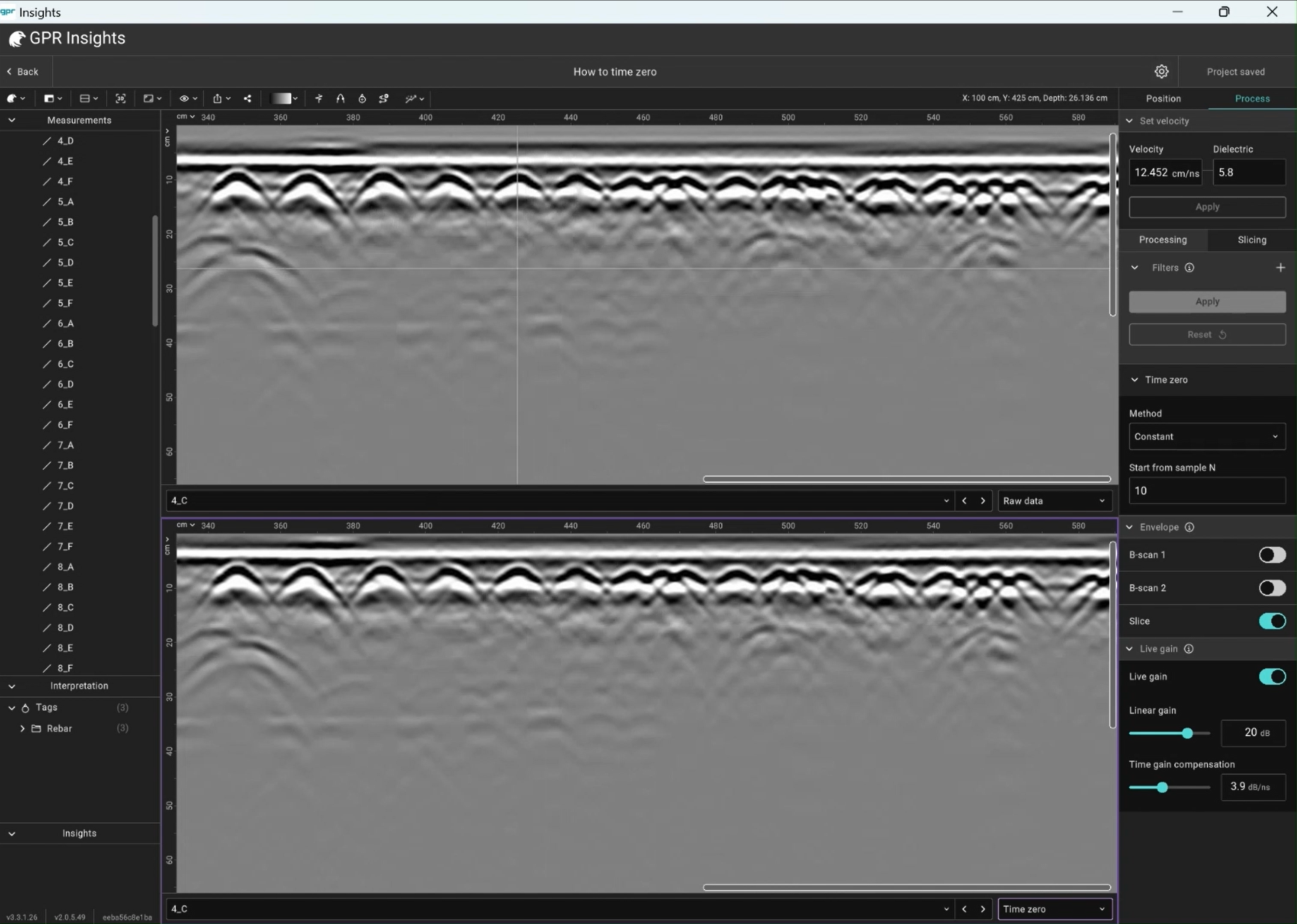
2Time zero
The first filter on almost every dataset. Shifts the data so that t=0 corresponds to the surface reflection. Four methods:
Method
How it works
Peak
Sets t0 at the first positive or negative peak after the chosen sample.
Threshold
Sets t0 at the first sample exceeding a user-defined threshold.
Crossing
Sets t0 at the first zero-crossing after the chosen sample.
Constant
Sets t0 at a fixed sample number — useful when you can see the ground wave.
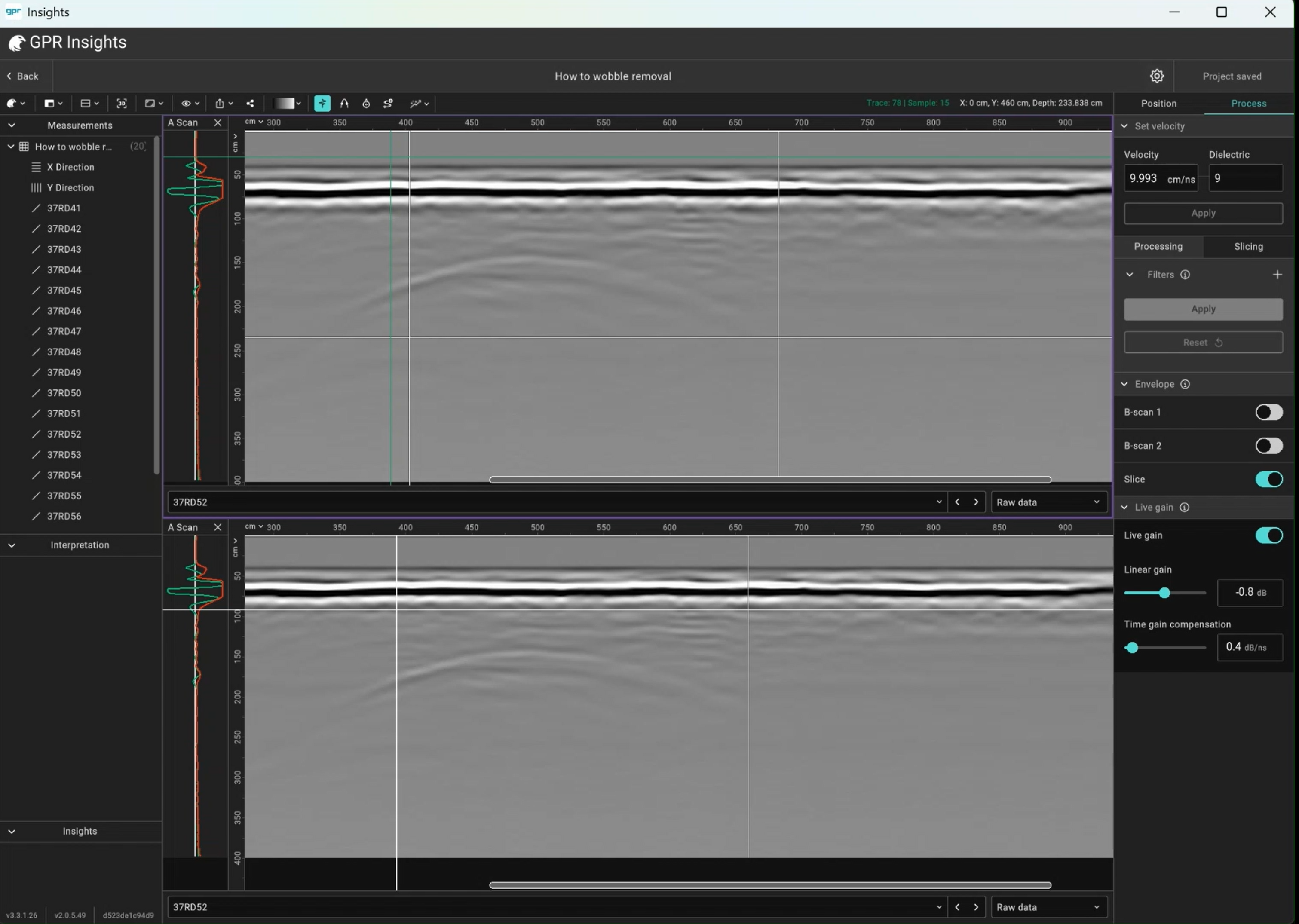
3Wobble removal (dewow)
Subtracts a moving average to suppress DC drift and low-frequency "wow" noise. Window defaults to 10% of total samples per B-scan but should be adjusted based on the low-frequency content to be supressed.
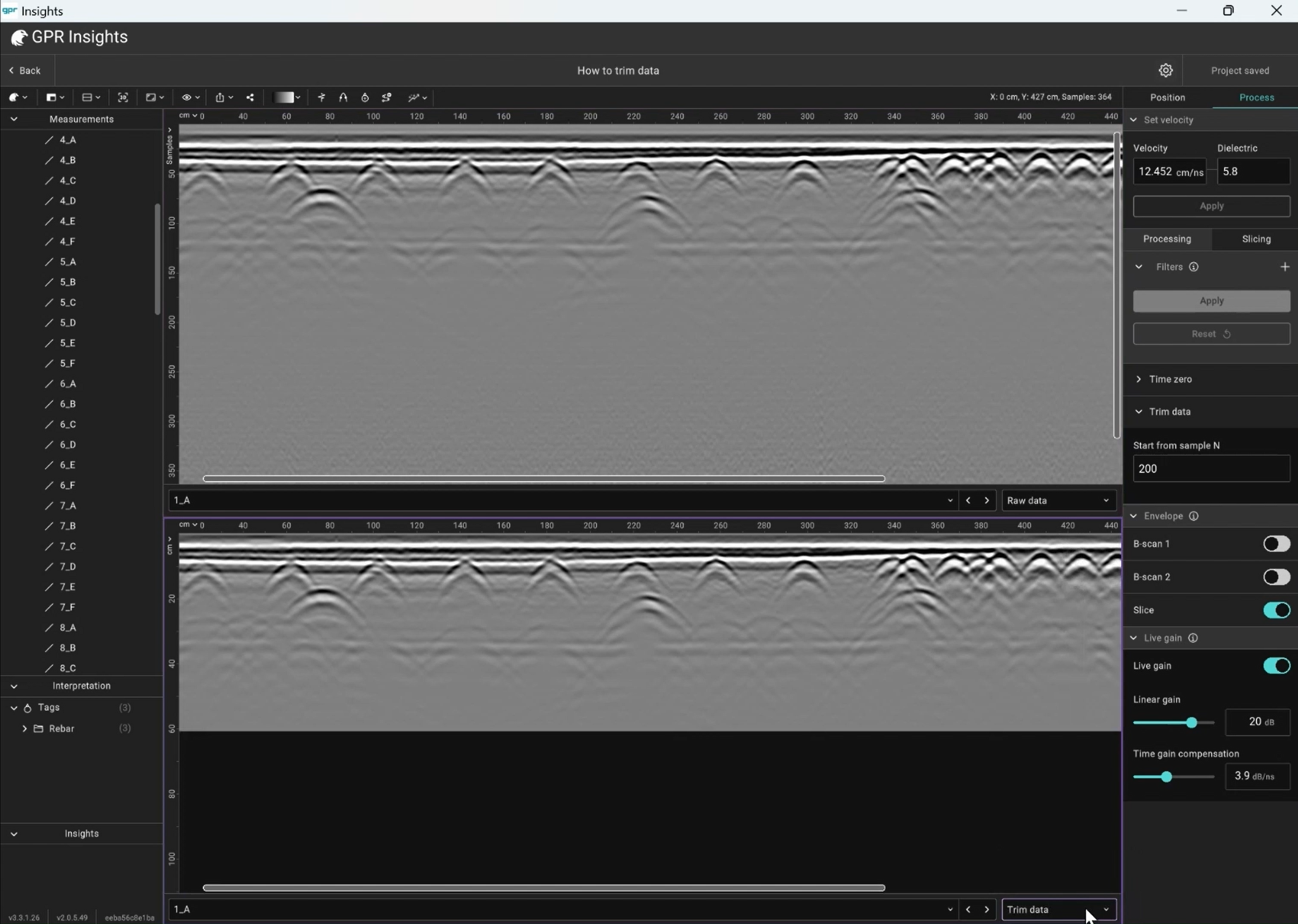
4Trim data
Removes all samples after a chosen sample number. Useful when the late-time portion of the window contains no useful signal (just noise).
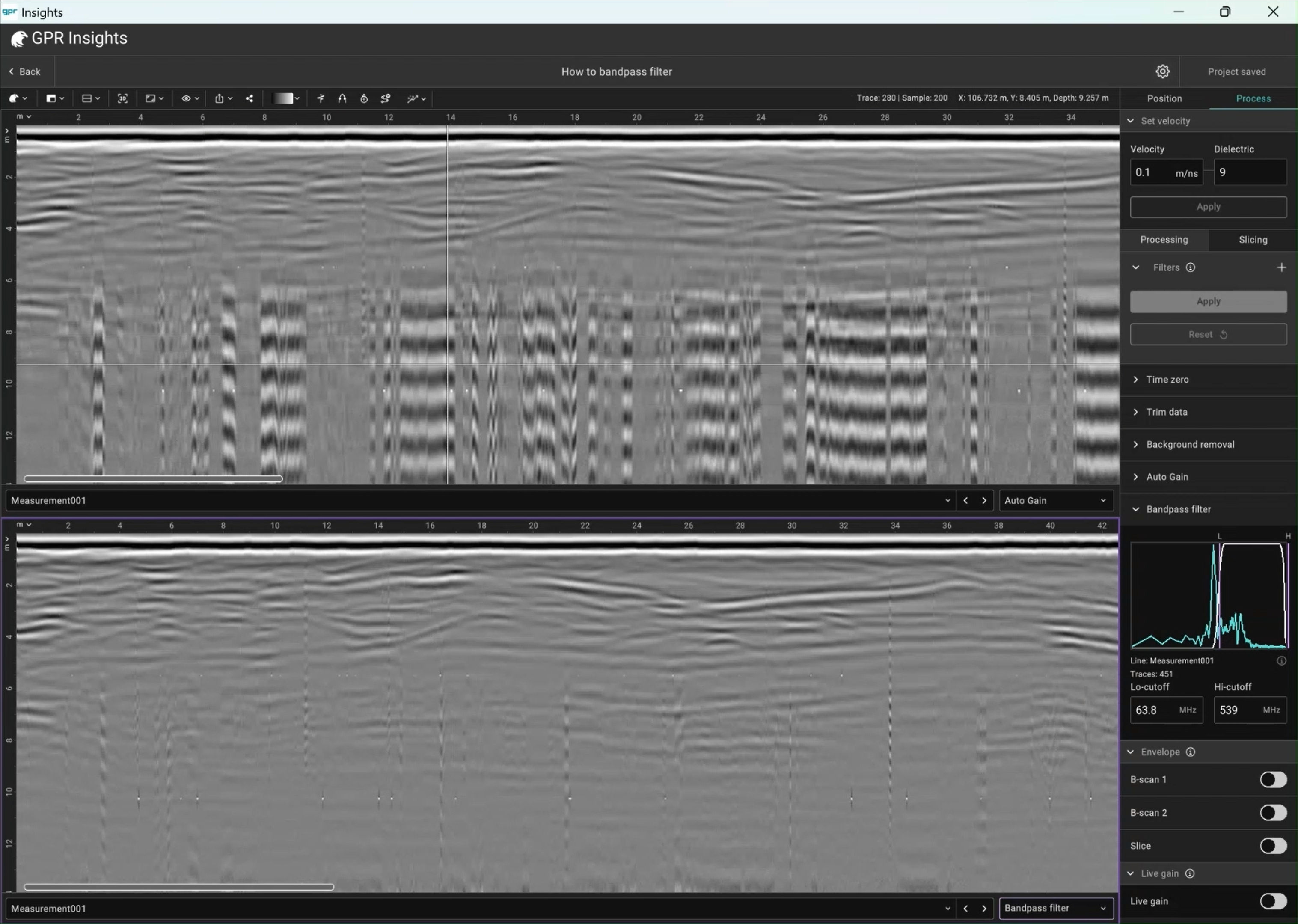
5Bandpass filter
Keep only a range of frequencies and discard anything outside the defined range. Drag the magenta lines on the frequency-spectrum plot or set the low and high requency cutoffs directly. Particularly effective for removing external interference (cellphone, radio).
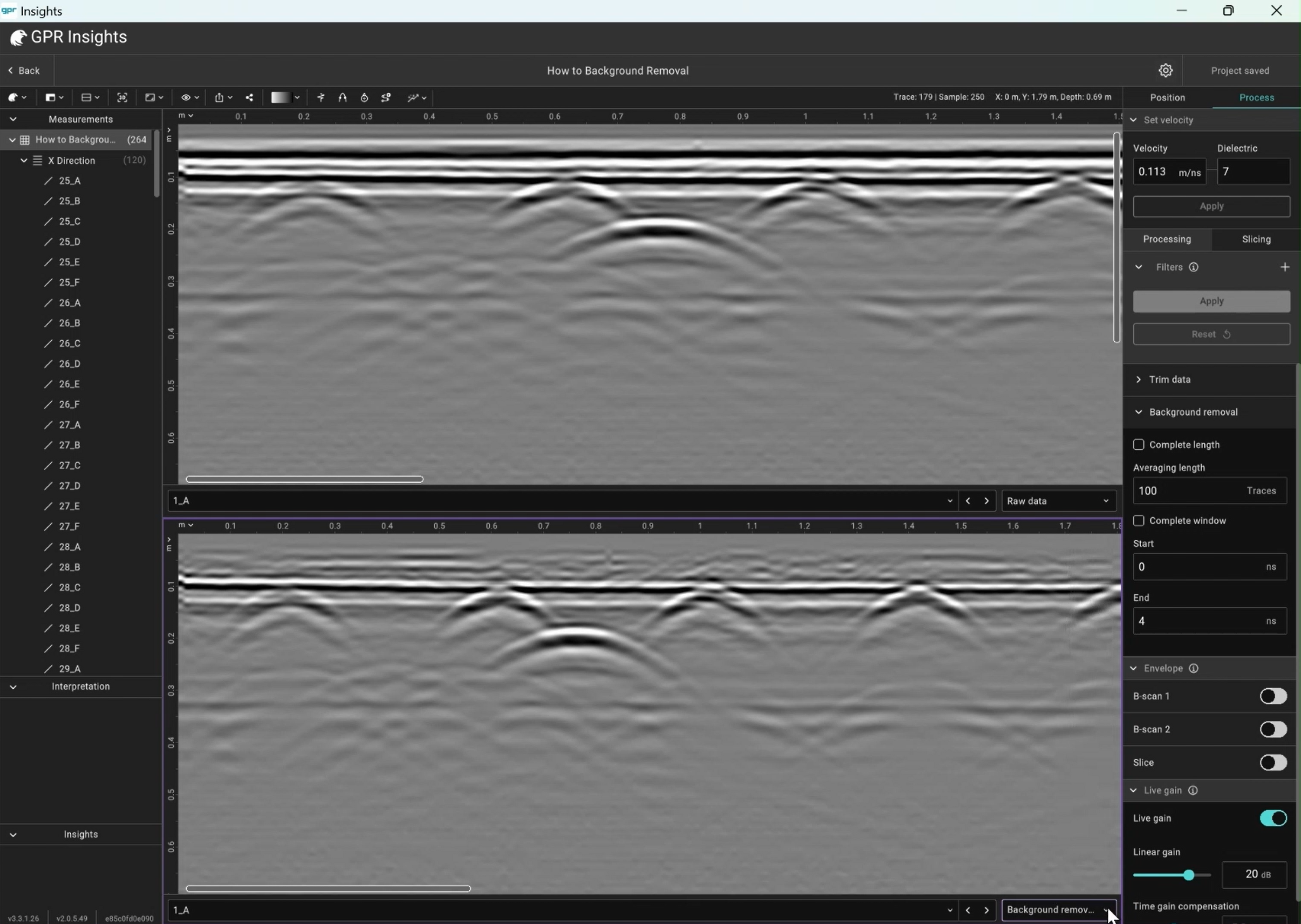
6Background removal
Subtracts the mean A-scan from every A-scan in the line. This filter is used for removing banding noise and the direct air/ground waves. Defaults to using the complete length and complete time window. Turn either off to operate over a subset.
Note
Flat-lying reflections of interest (e.g. rebars/pipes parallel to scanning direction, flat pavement layers) might also be partially or fully removed. Always check the raw data before applying this filter.
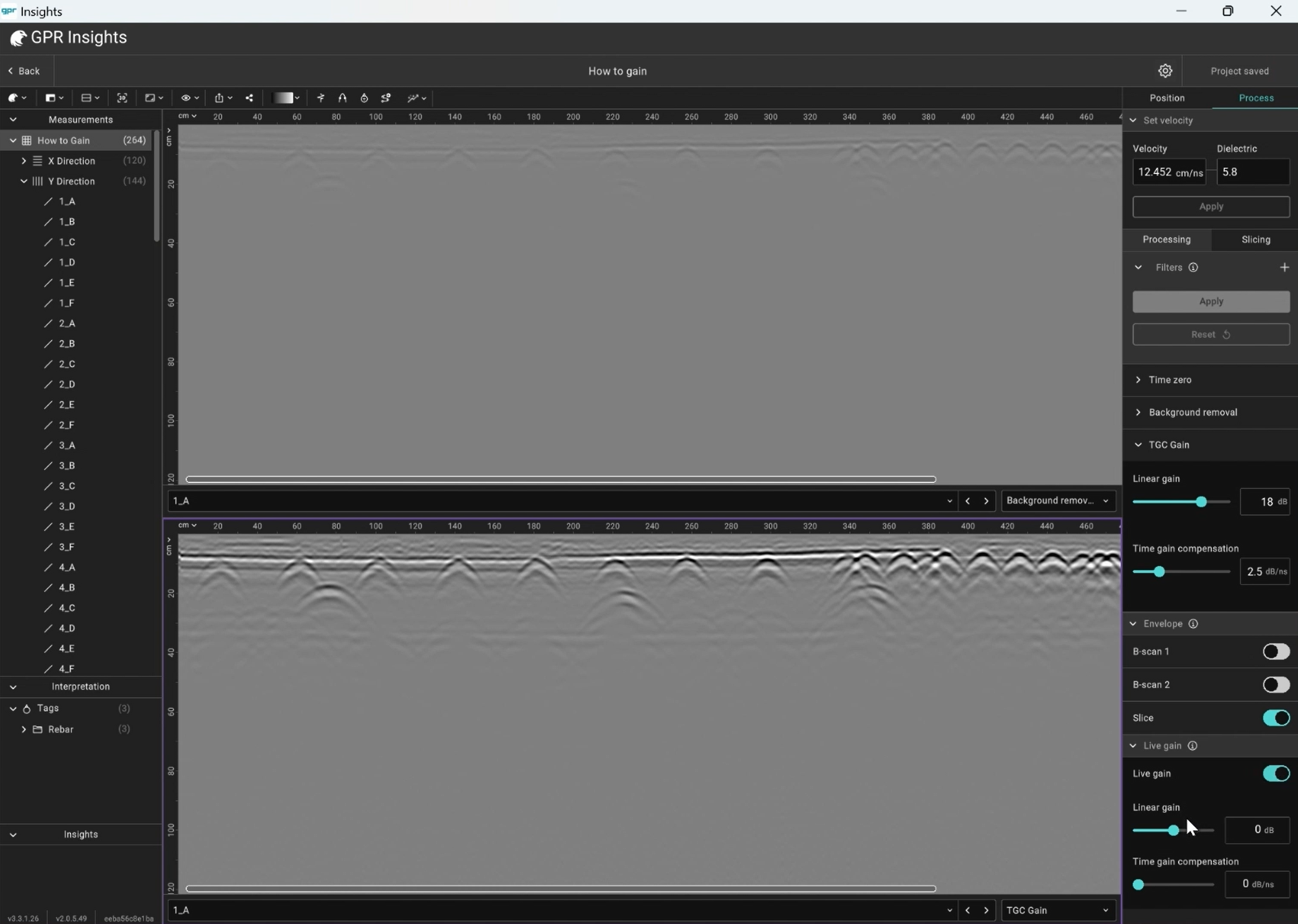
7Gain
Two filter options plus a live preview:
Auto Gain (imported from GPR-Slice): Finds the biggest signals at 16 locations down the trace and linearly interpolates. Three modes: 1.Line by line, 2.Selected line, 3.Average all lines.
TGC gain: Linear gain (dB) + time-gain compensation (dB/ns) for linear and exponential growth with depth, respectively. Combined into a single gained image.
Live gain: Used for live visualisation only. Same controls as TGC.
Note
Apply incrementally. Excessive gain saturates the data, amplifies noise, and can erase the amplitude differences that distinguish strong from weak reflectors.
8Migration
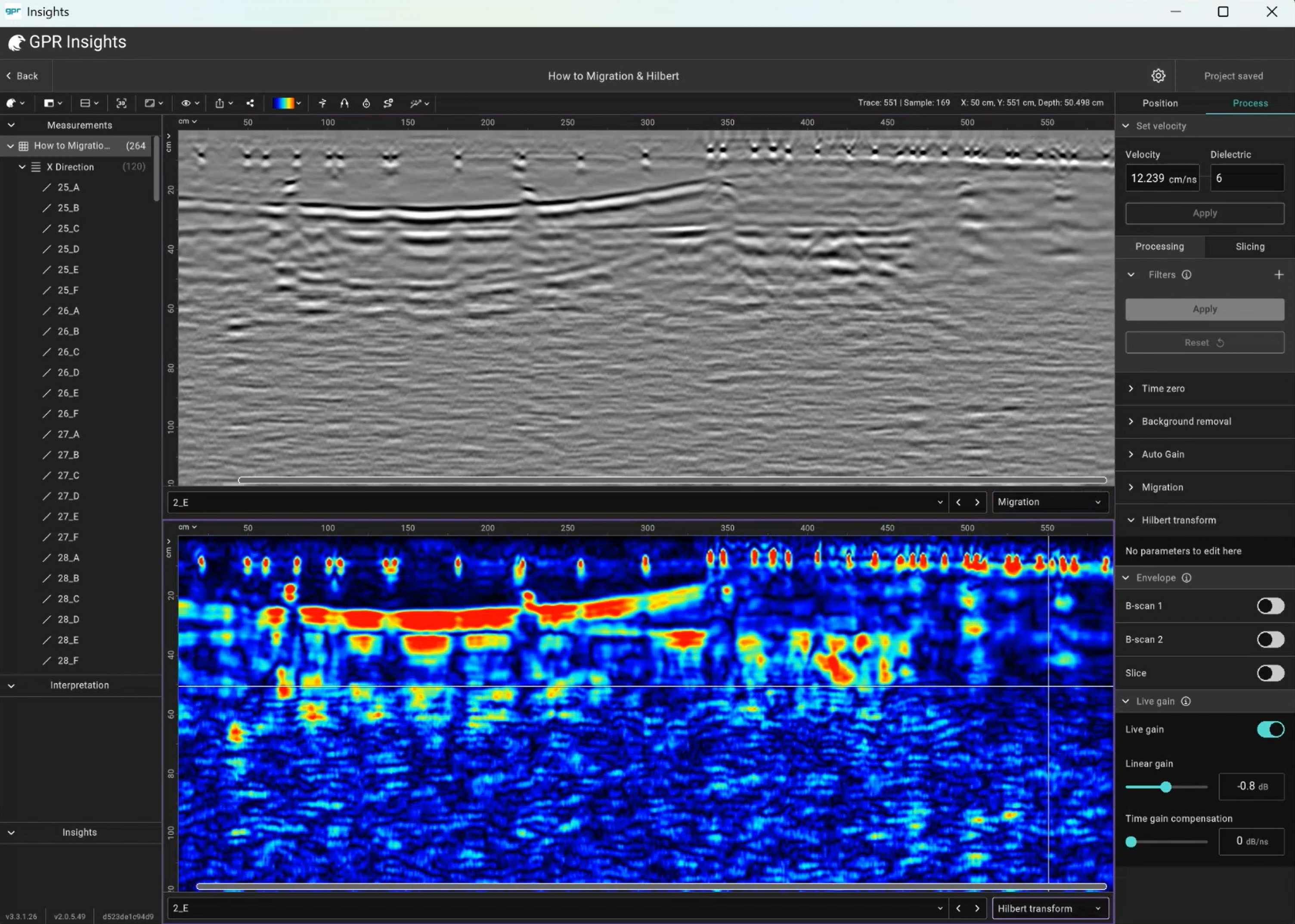
Default algorithm: 2D diffraction-stack. Collapses hyperbolic responses to point reflections at their true spatial location. Requires a good velocity estimate (set it first). The trace-window width should be chosen to the number of traces the hyperbola spans.
9Hilbert transform
Applied commonly after migration. Converts oscillating wavelets (positive + negative parts) into smooth positive-only envelopes which are much easier on the eye for interpretation. By default uses a rainbow colormap.
10M&H filter
Migration + Hilbert in sequence as one combined step. Usually used for single channel reinforced concrete inspections.
10Filter presets
Save any pipeline as a named preset (Save button in the Filters section) so that you have to create it only once and load it into other projects via Load after. Manage all presets in User Settings → Processing.
Slicing
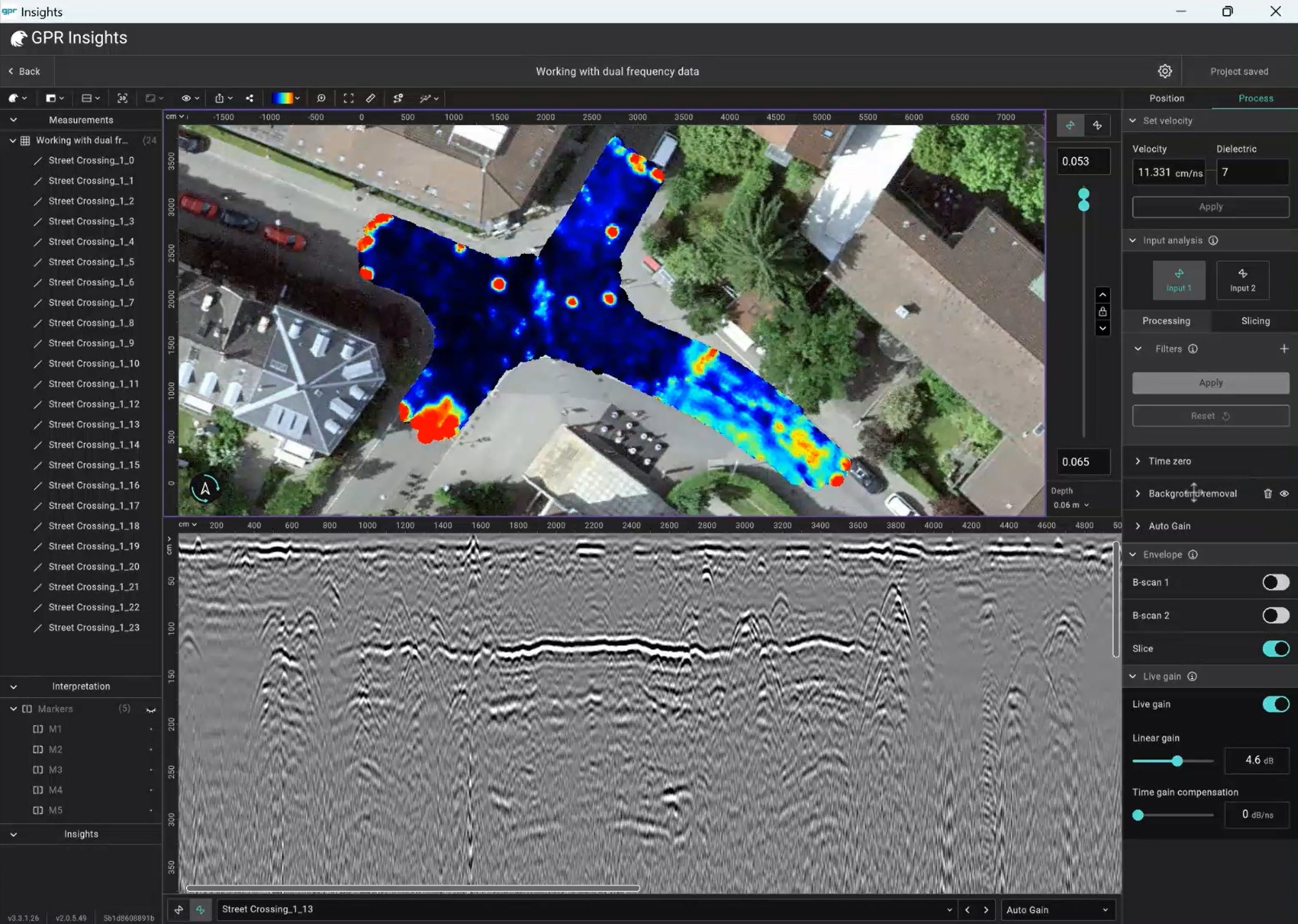
Slicing creates top-view depth images from your line scans. Two modes: Live Slice for real-time iteration and Advanced for full volume compilation.
1Live Slice mode
Fast, interactive with live updates. Control depth and thickness with the right-hand slider. Drag the two cyan circles for thickness, or lock and use ↑↓ to navigate between slices at a fixed thickness.
Setting
What it does
Complete area
Toggle off to slice only a cropped region; set X / Y limit values or draw a box around the desired area and click Crop.
Quality
Preview / Medium / High (trade-off speed vs. resolution).
Progressive rendering
Increasing level of detail for responsiveness. "Automatic" lets Insights decide.
Search radius
Maximum distance the slicer looks for points to interpolate. Suggested: 1.5×profile spacing.
Filter
Which processing step the slice displays. Defaults to the last applied filter.
2Advanced mode
Slower, but produces full volumes and more control over the slicing algorithm. Split into two sections.
Slicing
Window: Complete time window or a defined start/end portion.
Overlap: 50% recommended for smooth transitions between consecutive slices.
Number of slices: How many slices to create
Thickness: auto-calculated from the above (override if you need to).
Method: Absolute amplitude, Amplitude (for 1-sample slices on dense grids), Squared amplitude, Max (default for concrete).
Gridding
Method: Inverse distance interpolation (default for subsurface and large surveys) or GP interpolation (default for small-scale concrete and is great for linear features like rebars).
Cell size: Too large degrades resolution. Pick based on A-scan separation and B-scan spacing.
X and Y Search radius: Same as in Live but here we can set separate values for each direction.
Blanking radius: Points further than this from any data are left blank.
2D filter: Optional filter to clean gridding noise.
Default behaviour
If Default parameters is on, settings are chosen for you based on the GPR system used for data collection and your profile spacing. Concrete is auto-selected for GP-series sensors; Soil for GS8000, GS9000, GM8000 and third-party. Choosing the wrong one leads to suboptimal results.
Data visualization
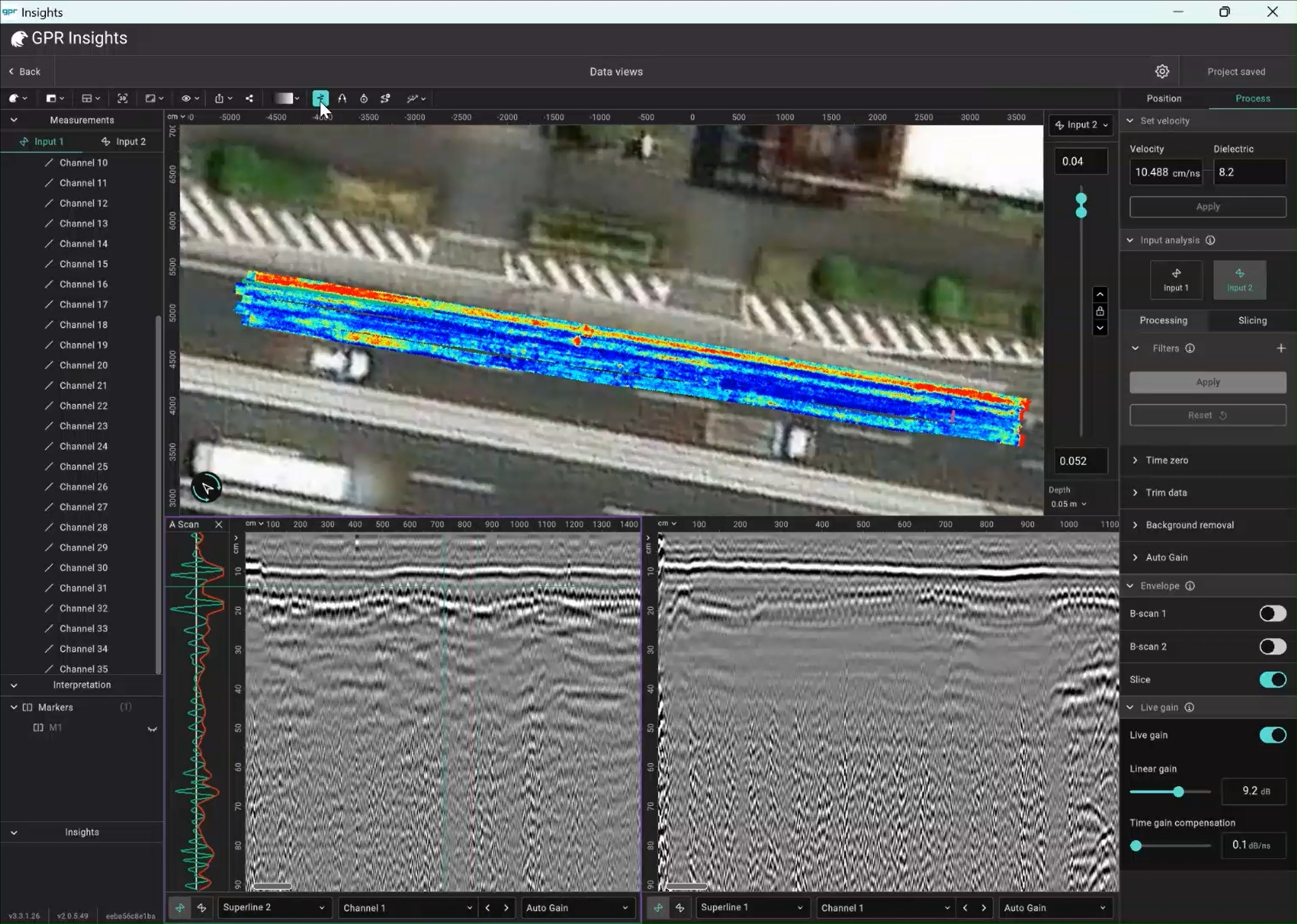
Different data representations can be visualized in GPR Insights and also different view modes are available to look at the GPR data. All views in the workspace are linked: double-click on one window and the others will update.
1Data representation
View
What it shows
A-scan / Trace / Wiggle
Signal amplitude vs. two-way travel time at one location. Display alongside a B-scan by toggling it in the toolbar.
B-scan / Radargram
2D image of A-scans stacked along a survey line (y is time/depth, x is distance).
Time/depth slice
Top-down 2D plan view at a given depth.
C-scan
Cross-section in any plane perpendicular to X, Y, or Z. A slice is essentially a C-scan in the X-Y plane.
T-scan
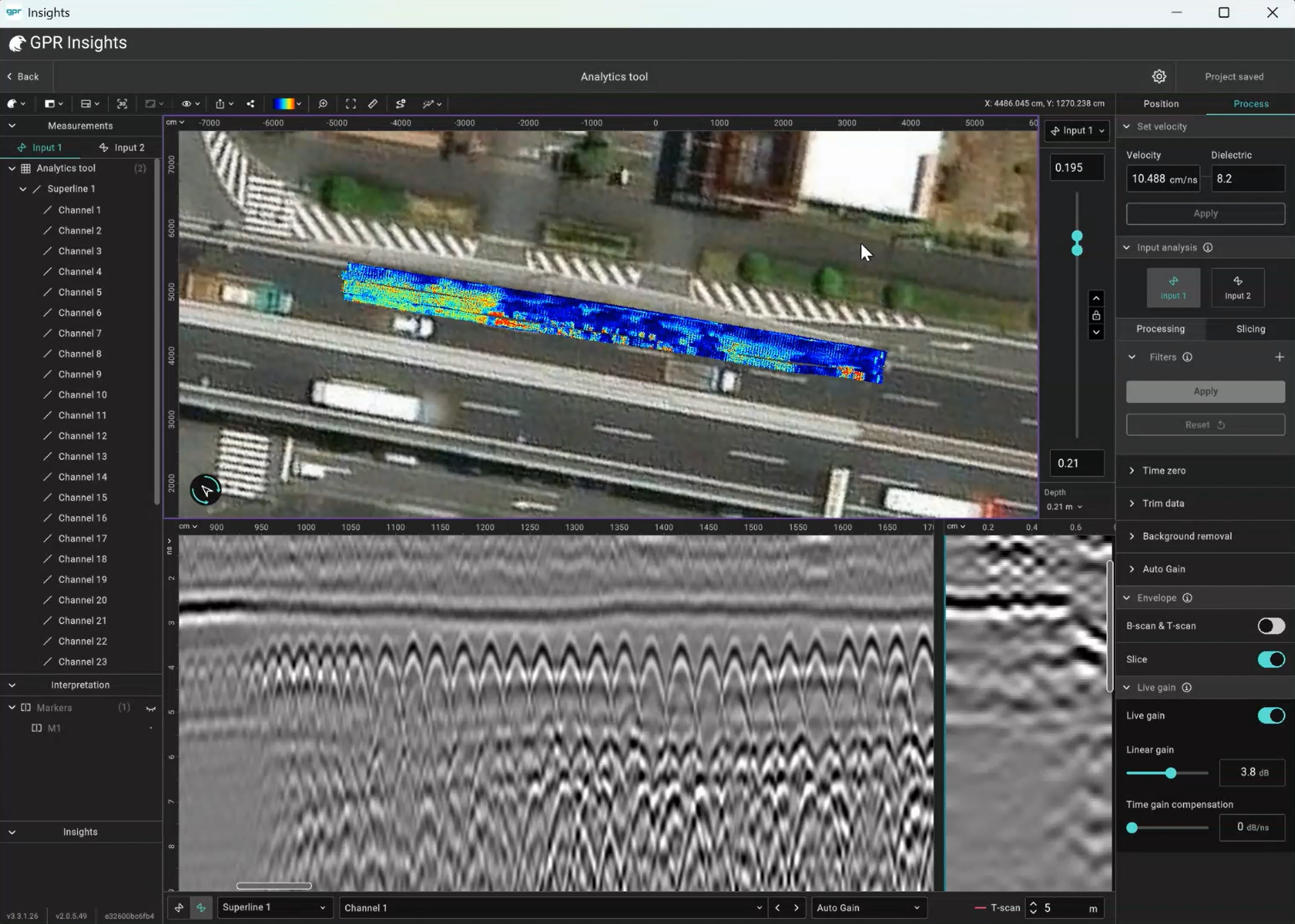
Multi-channel only. Cross-section perpendicular to the scanning direction, combining a single column of data from every channel.
1Data views
View
What it shows
3 views
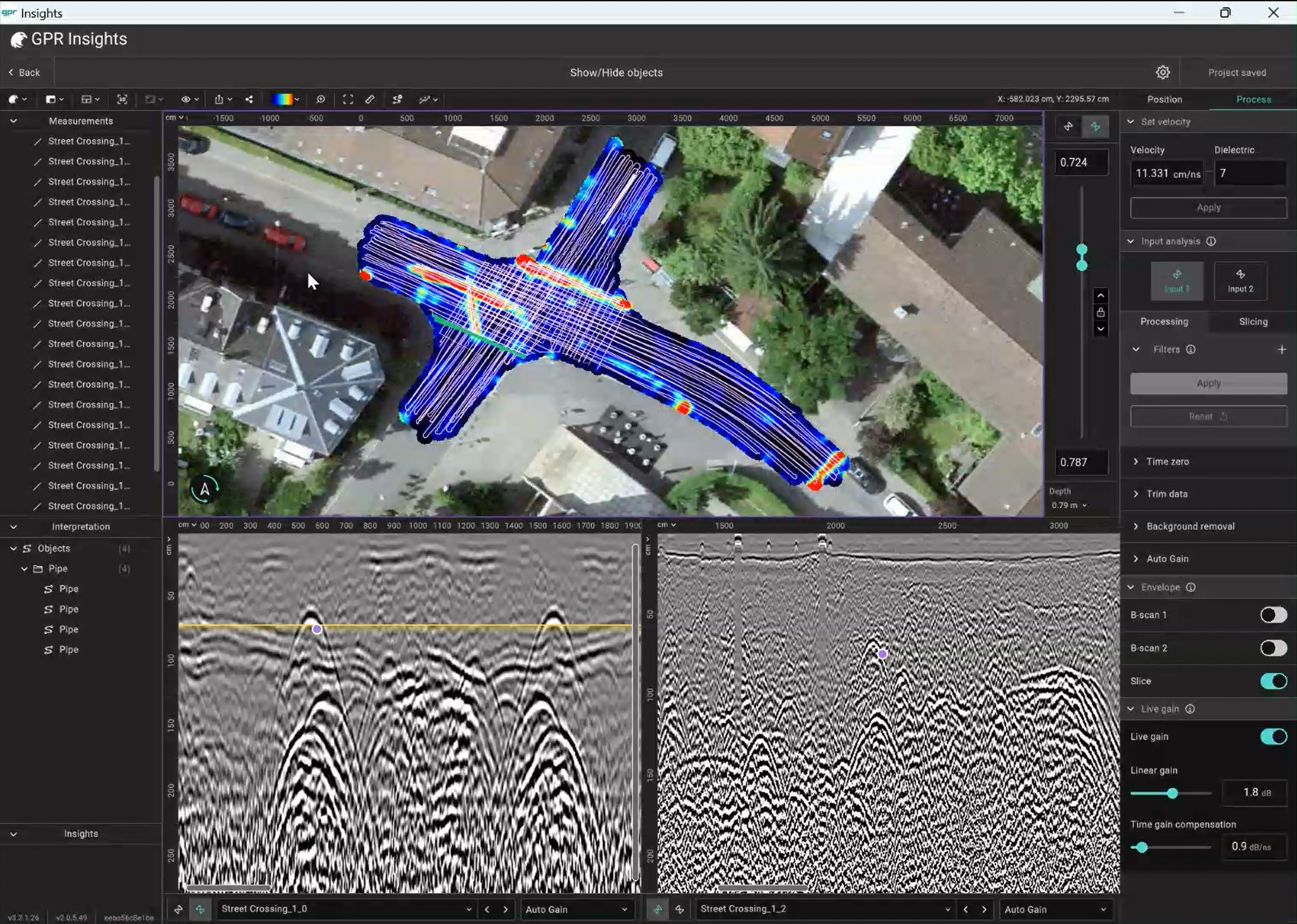
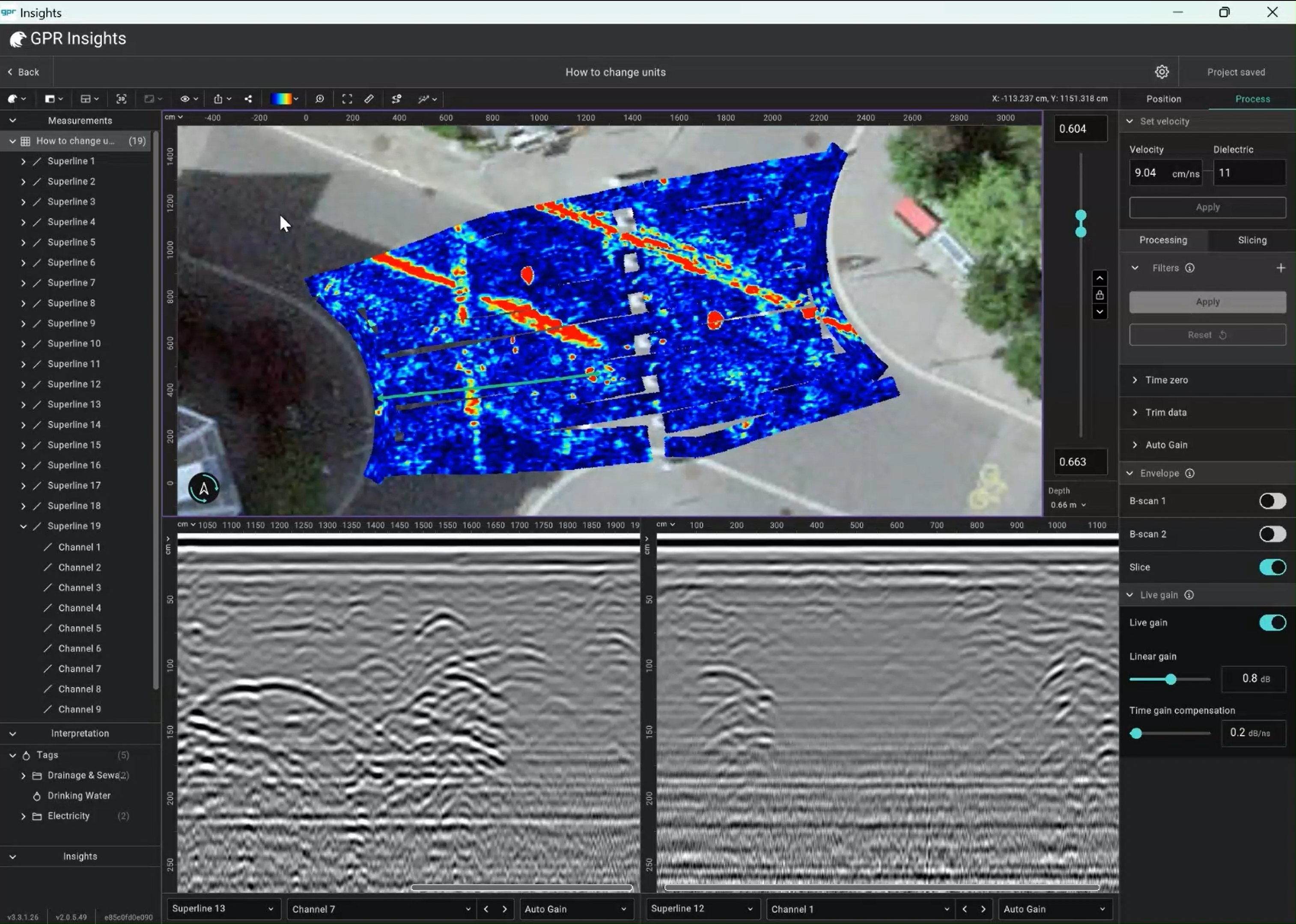
Slice on top + two B-scans below (default)
2 views
Slice + one B-scan.
2 B-scans
Two Bscan windows top-down for direct comparison.
Multichannel
B-scan + T-scan. Multi-channel only.
Layers
B-scan + Sketch of layered structure. Only available when horizons are defined.
Fullscreen
B-scan + Sketch of layered structure. Makes the active window fullscreen.
13D Viewer
Click the 3D view button to wrap the slice in virtual trenches and a 3D axis. Optional vertical exaggeration makes features shown easier. Right-click the slice in 3D to switch trench shape: Shape / Chair / Box / Trenchless.
In 3D mode you can also add extra B-scans and C-scans into the scene via the toolbar where each can have its own colormap and comments. They appear in the left panel for selective hide/show.
2Display settings to know
Brightness & contrast: Basic image controls.
Cutoff: Threshold that clips values below the low cutoff. Great for revealing subtle grid features.
Transparency: Make slice transparent.
Curves / transforms: Linear (default), logarithmic, bipolar.
Interpretation & AI Analytics
Three tools for marking what you find and four AI maps for letting the model find things for you.
1Tags
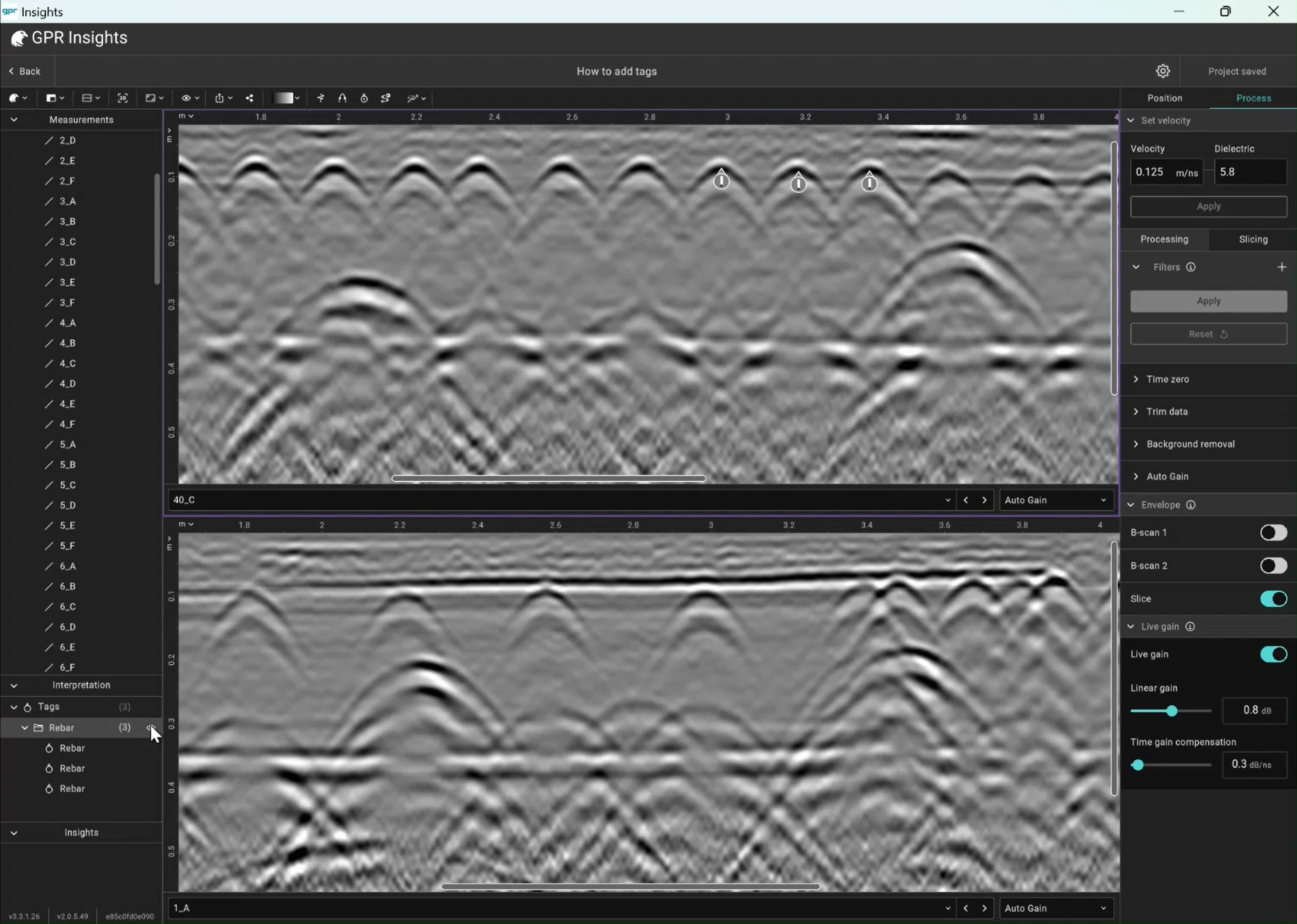
Mark a specific point in a B-scan. Toolbar → Add tags (or right-click the B-scan). Each tag carries X / Y / depth, a name, an icon, optional diameter value set for cylindrical targets, and comments. Auto-included if tags were added in the field apps during data collection.
2Objects
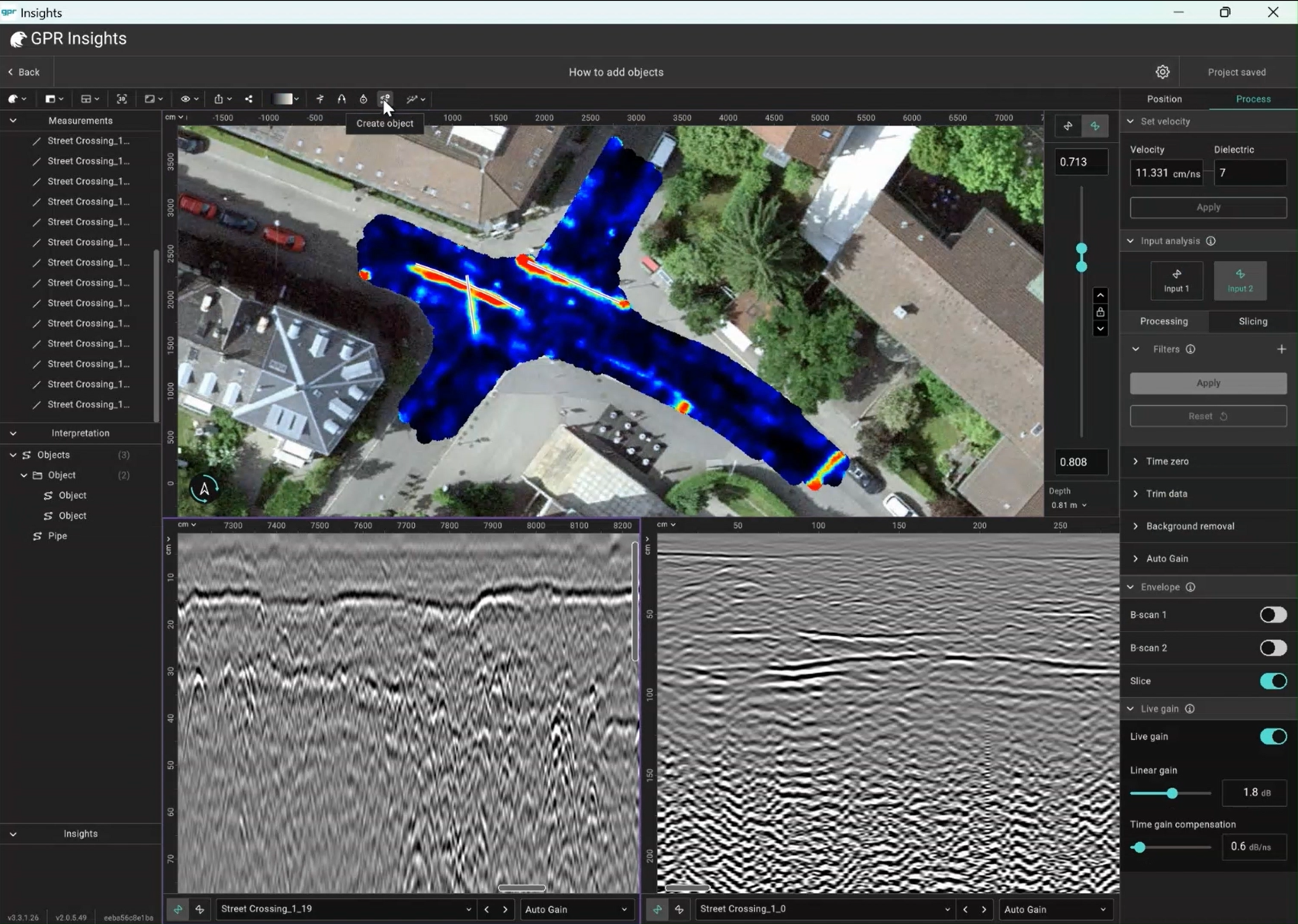
A polyline to sketch the shape of an object can be created. From the toolbar, click Create object, start adding points to draw the feature shape and click Done when finished. Points can be added at either window (slice, B-scan, T-scan). Pick a colour, a 3D texture (Concrete / Metallic / Plastic / Brick) and a cross-section (circular with diameter, or rectangular with width & height). Objects are editable after creation, by selecting the object item and after the Edit object tool.
3AI Analytics — four maps
Open the Analytics menu in the toolbar. All four maps are based on automatic AI-based hyperbola detection in the first rebar layer.
Map
What it shows
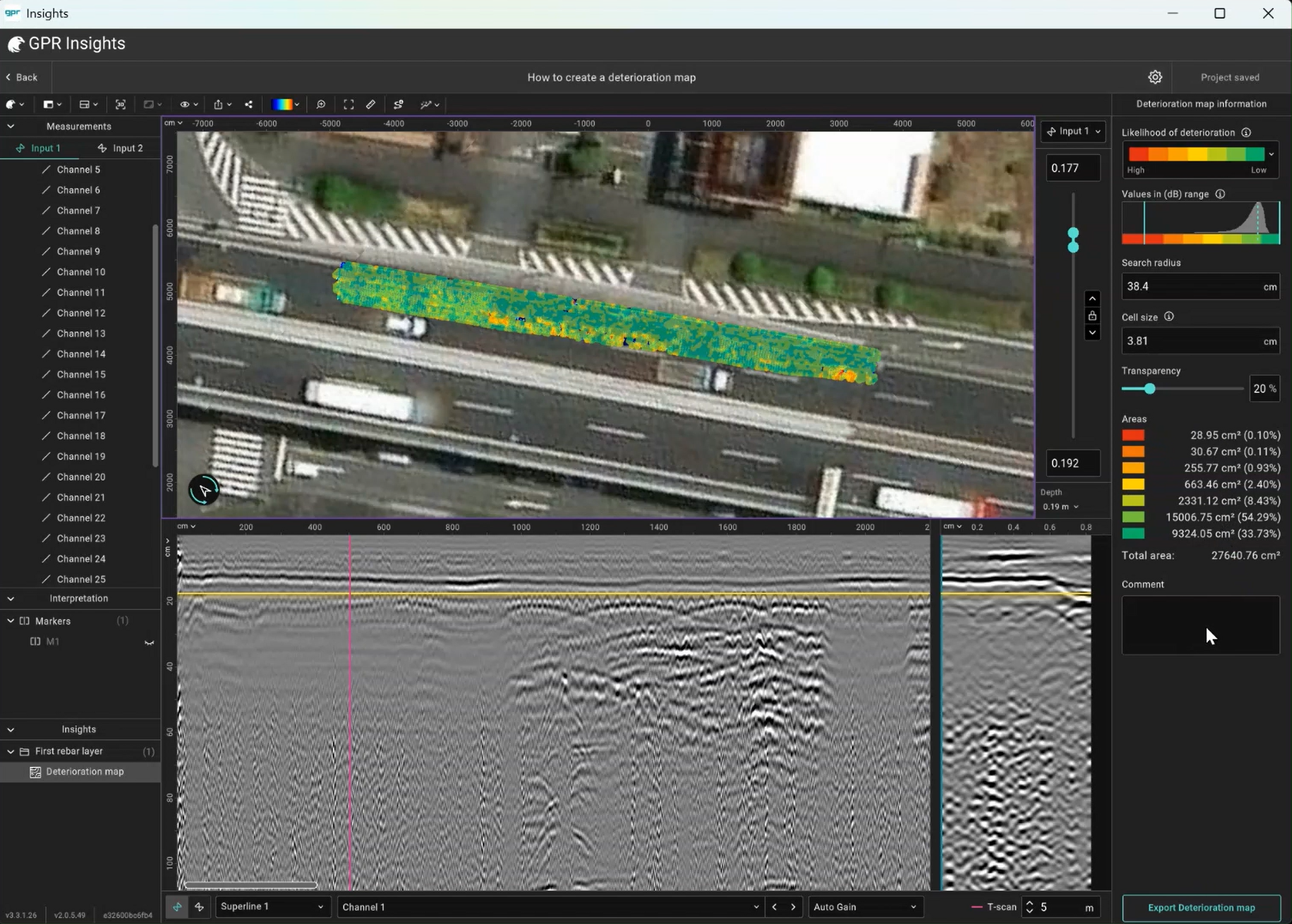
Deterioration map
Heatmap of detection amplitudes (dB). Values 8 dB below the maximum recorded amplitude correspond to areas of higher likelihood of deterioration. Follows the ASTM D6087 standard for asphalt-covered concrete bridge decks.
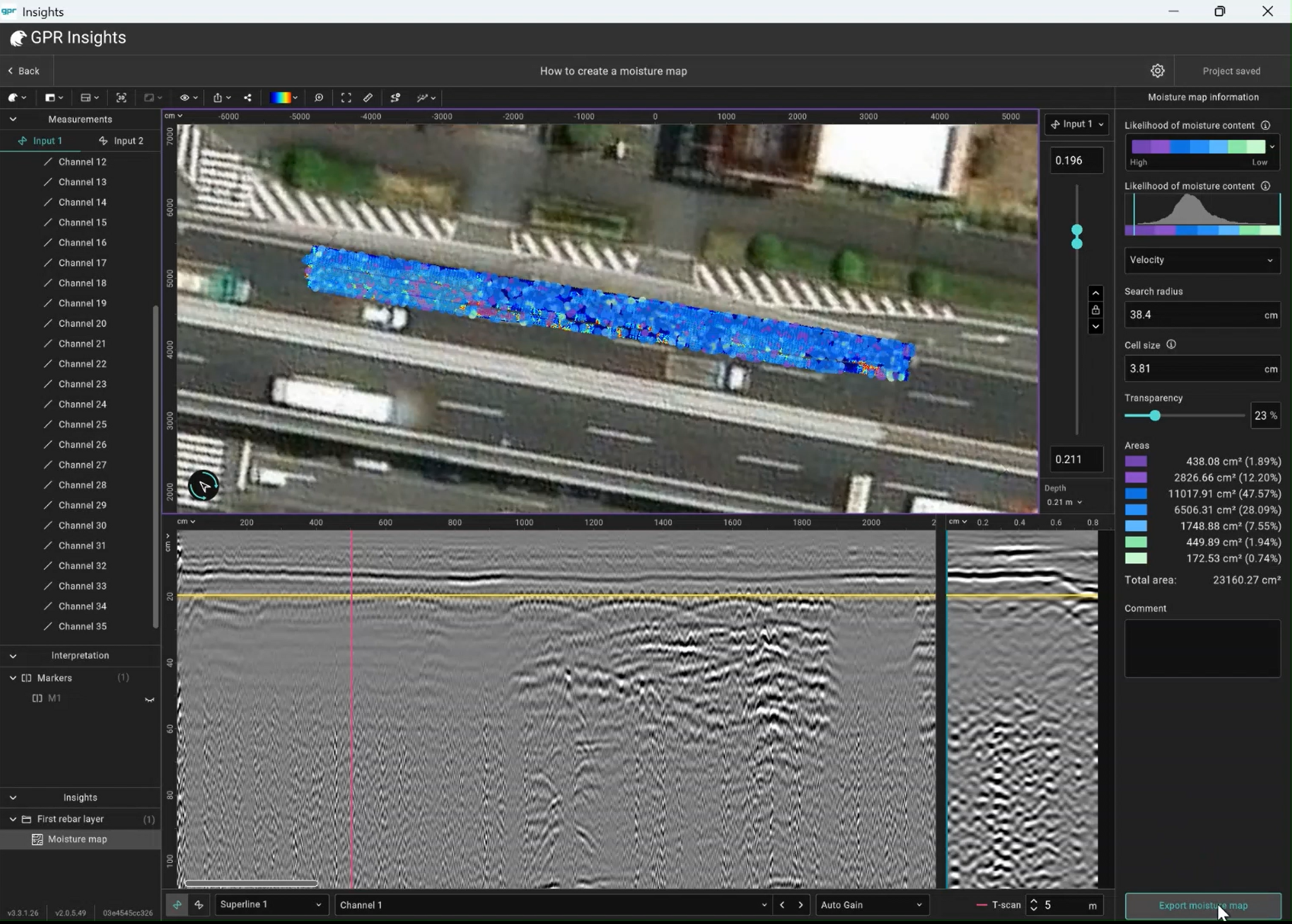
Moisture map
Heatmap of velocity / dielectric values at each detection point. Lower velocity (higher dielectric) → higher likelihood of moisture.
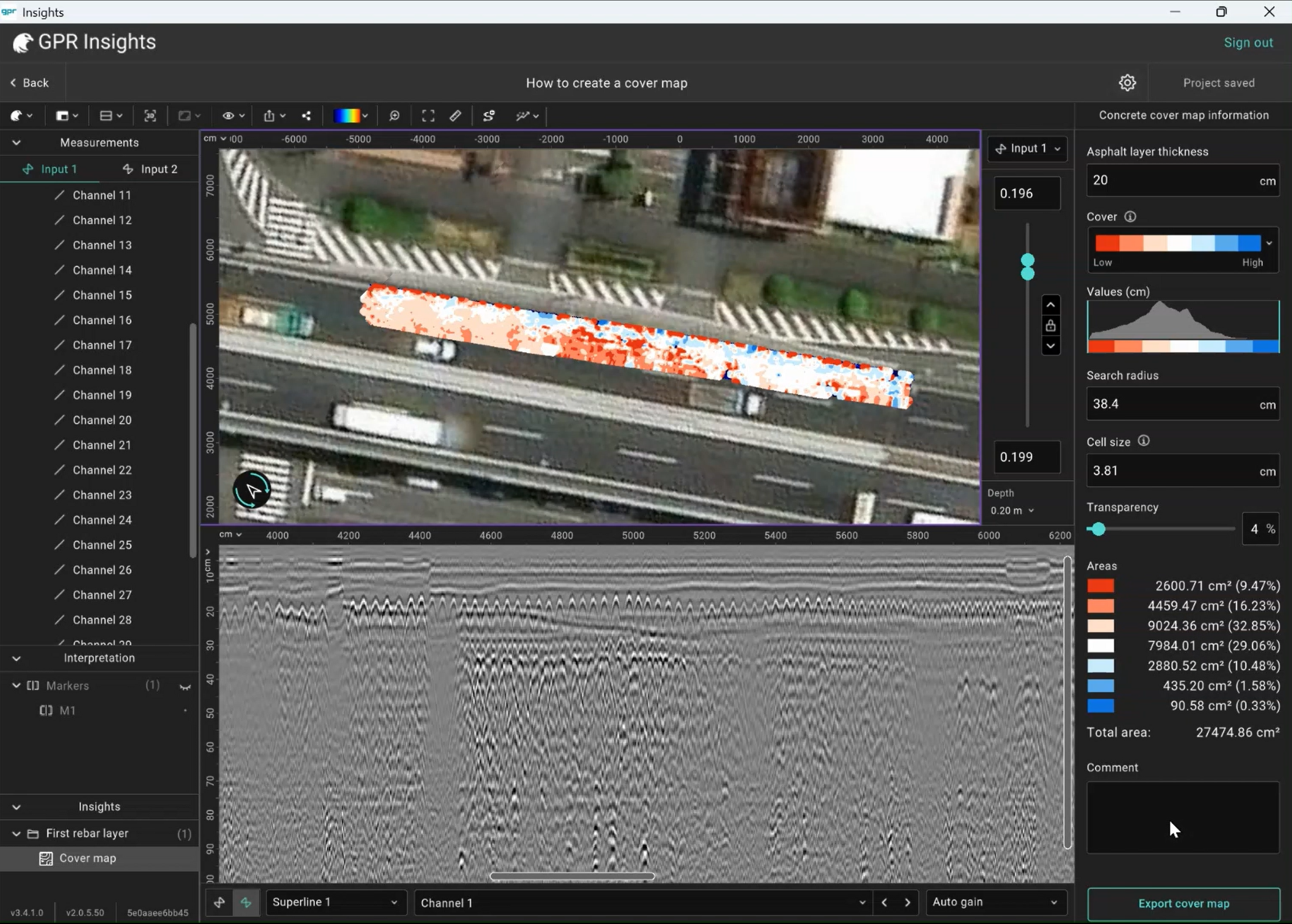
Cover map
Concrete cover values distribution. Insights prompts for asphalt-layer thickness to remove if applicable.
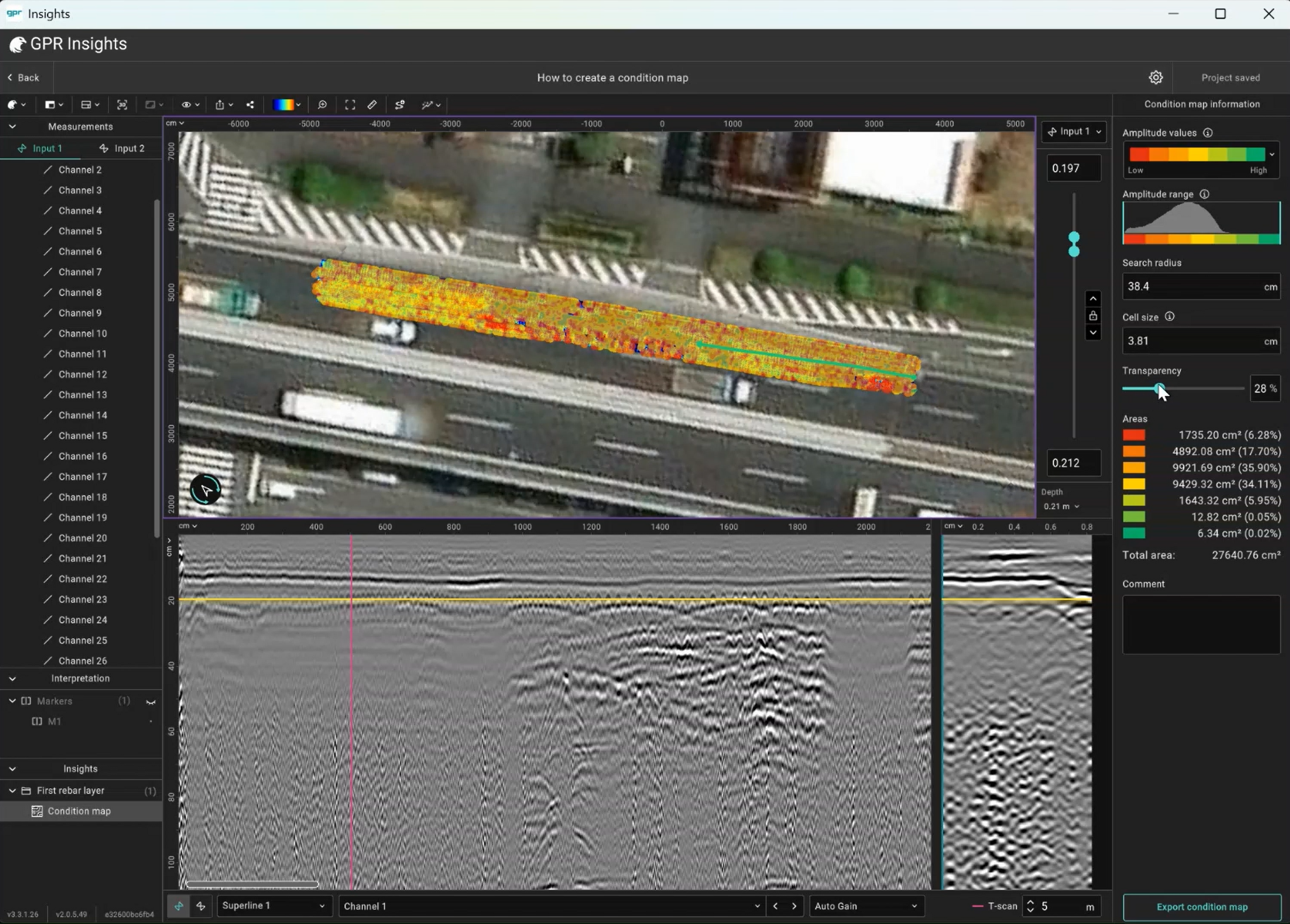
Condition map
Normalised amplitude (0–1) at each detection point. Low values → higher likelihood of deteriorated condition at or above rebar level.
After generating, select the First rebar layer in the left panel to access settings.
Confidence range: The confidence range can be adjusted to include only points that the algorithm is certain that they are rebars with a certain confidence level and above. By default this limit is at 30% confidence. Increasing this limit significantly can result in the algorithm being too strict and keeping only a few points as rebar detections. Reducing this threshold to a very low value can result in having multiple false detections.
Depth range: The range at which to look for rebars. It is recommended to adjust this range per dataset to only the area that contains the first rebar layer
4Horizon mapping
Trace positive or negative peak amplitudes automatically across a B-scan to map subsurface layers. Access from Analytics → Road → Horizon, or right-click the B-scan and pick Add Horizon. Click on the desired horizon to start detection. Useful for pavement layers, asphalt thickness, geological strata amongst others.
After generating, select the horizon item from the left panel to access its settings.
Smoothing filter: A moving average filter that can be used to smoothen a horizon. Increasing the length will result in more smoothing.
Depth range: The range at which to look for rebars. It is recommended to adjust this range per dataset to only the area that contains the first rebar layer
Distance: Set the start and end distance of where to look for a horizon across a B-scan.
Peak: Select to trace either the position (Peak+) or negative (Peak-) peaks.In some cases tracing the positive peaks might work better than the negative peaks and vice versa.
A horizon can be traced at a single B-scan, multiple B-scans or for the full survey area. From these data, certain heatmaps can be created. Select the horizon item from the list and click on the Add map tool from the toolbar to generate any of the following maps.
Map
What it shows
Depth map
Heatmap with depth variation of the traced interface. This is the default map created.
Thickness map
Thickness distribution map (depth difference between horizons)
Amplitude map
Signal amplitude variation distribution that can hightlight changes in the traced interface (that can indicicate e.g. delamination, higher moisture).
5Cores
Add a borehole / core record to a specific location and use as ground truth to calibrate horizons and GPR data. This can be accessed from the toolbar with the Add core tool or by right clicking on a B-scan. After clicking to set the core location, a window will appear for setting the core information (name and the diameter of the core can be set along with the information for
individual core layers, namely name, color and thickness) .
Export & collaboration
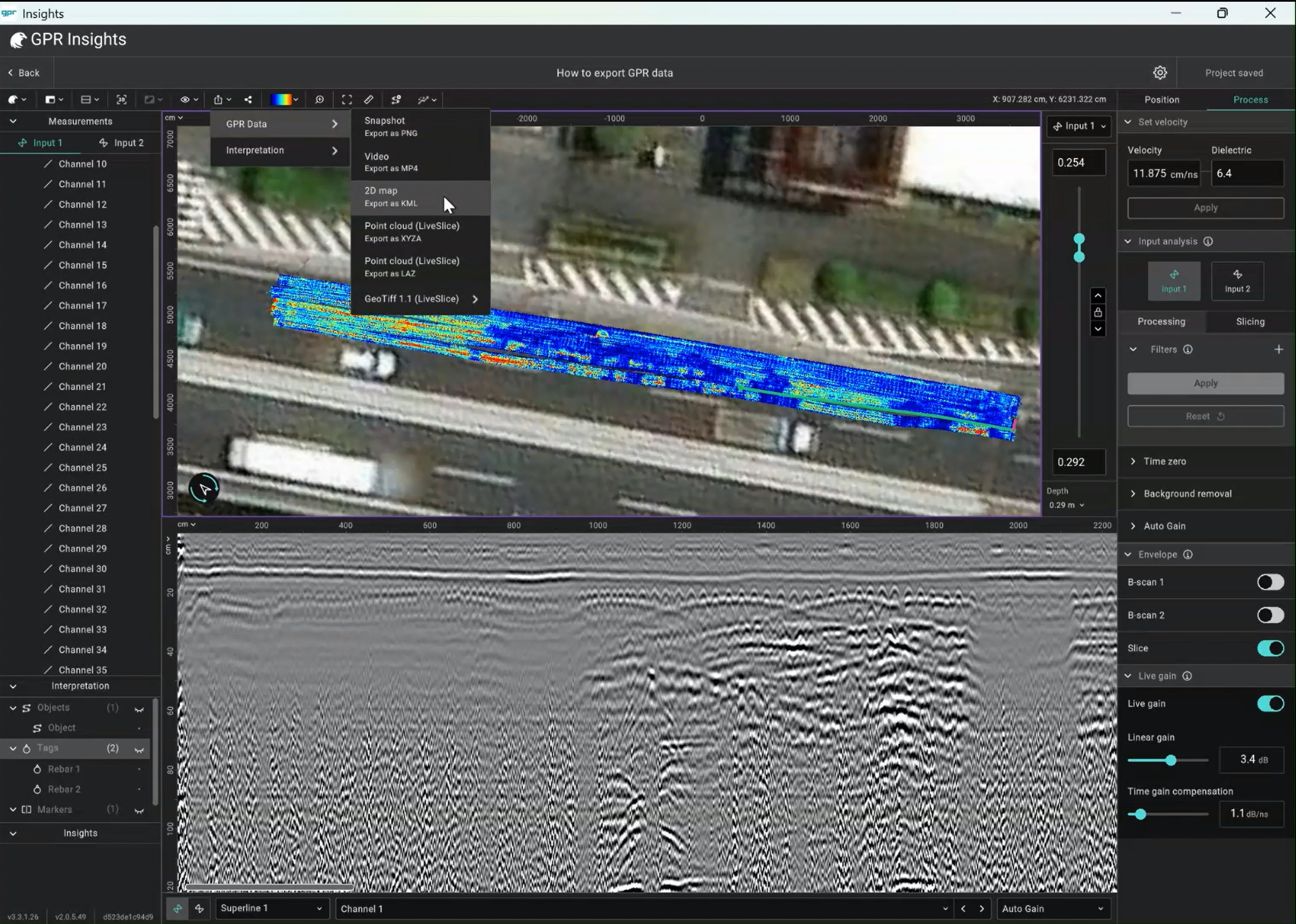
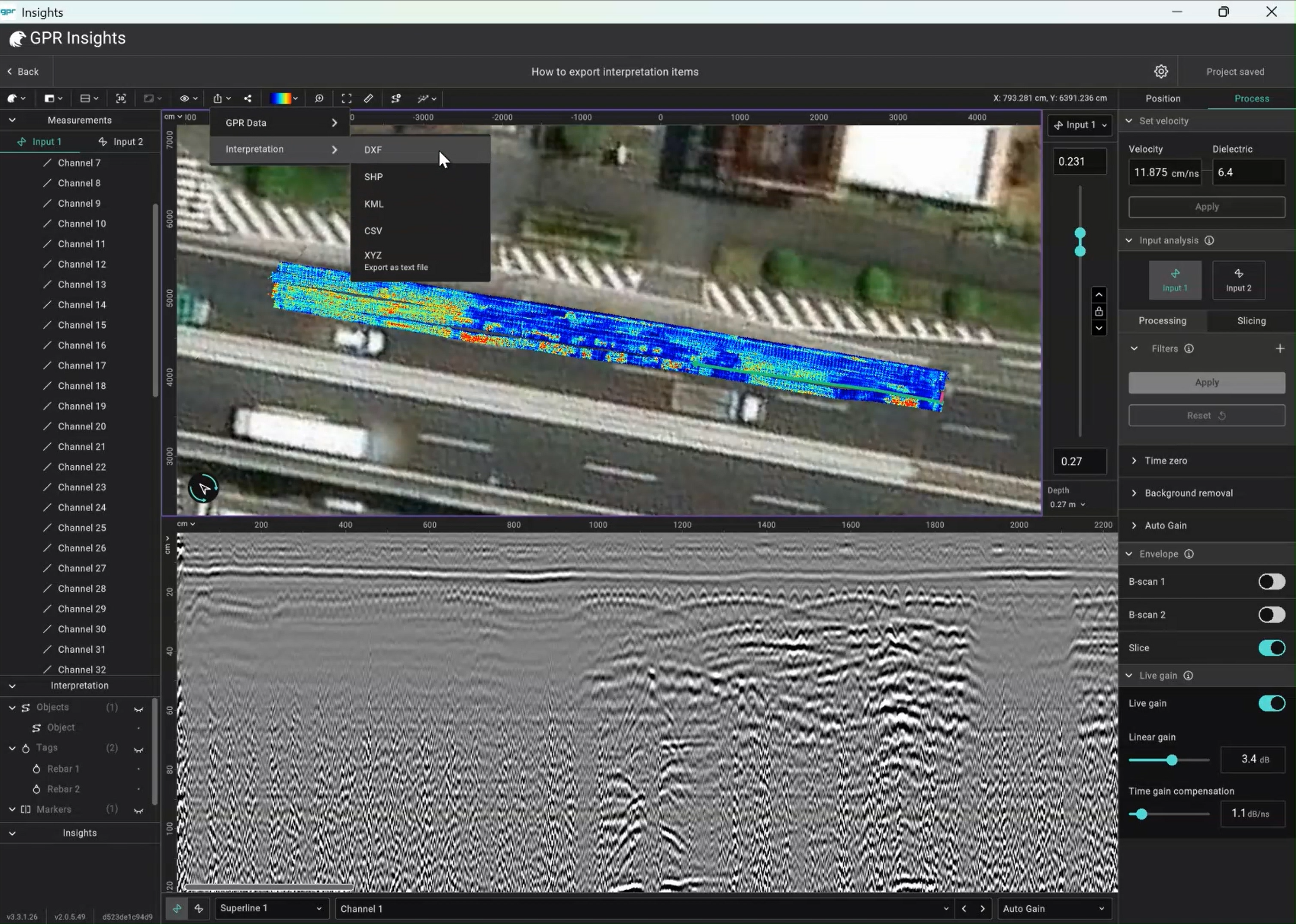
Everything you produce in GPR Insights, either processed GPR data or interpretations can be exported into different formats compatible with CAD, Google Earth, GIS, Point cloud and other software
1Exports
GeoTIFF: Slices as georeferenced rasters.
KML: Slice and interpretation items.
PNG: Slices or B-scans as .png snapshots.
MP4: Slices or B-scans as .mp4 videos.
Point clouds: Slices or B-scans as LAZ or XYZA point clouds.
Shapefile: Tags, objects and other markers for GIS.
DXF: Interpretation items and measurement path exported as 2D or 3D DXF.
CSV: Information and coordinates of interpretation items as csv.
TXT: Coordinates of interpretation items as csv.
2Collaboration
Share a project with a teammate by generating a sharing link which will copy the project to your teammate's account or generate a link for sharing an active session and work on a project together.
Video tutorials
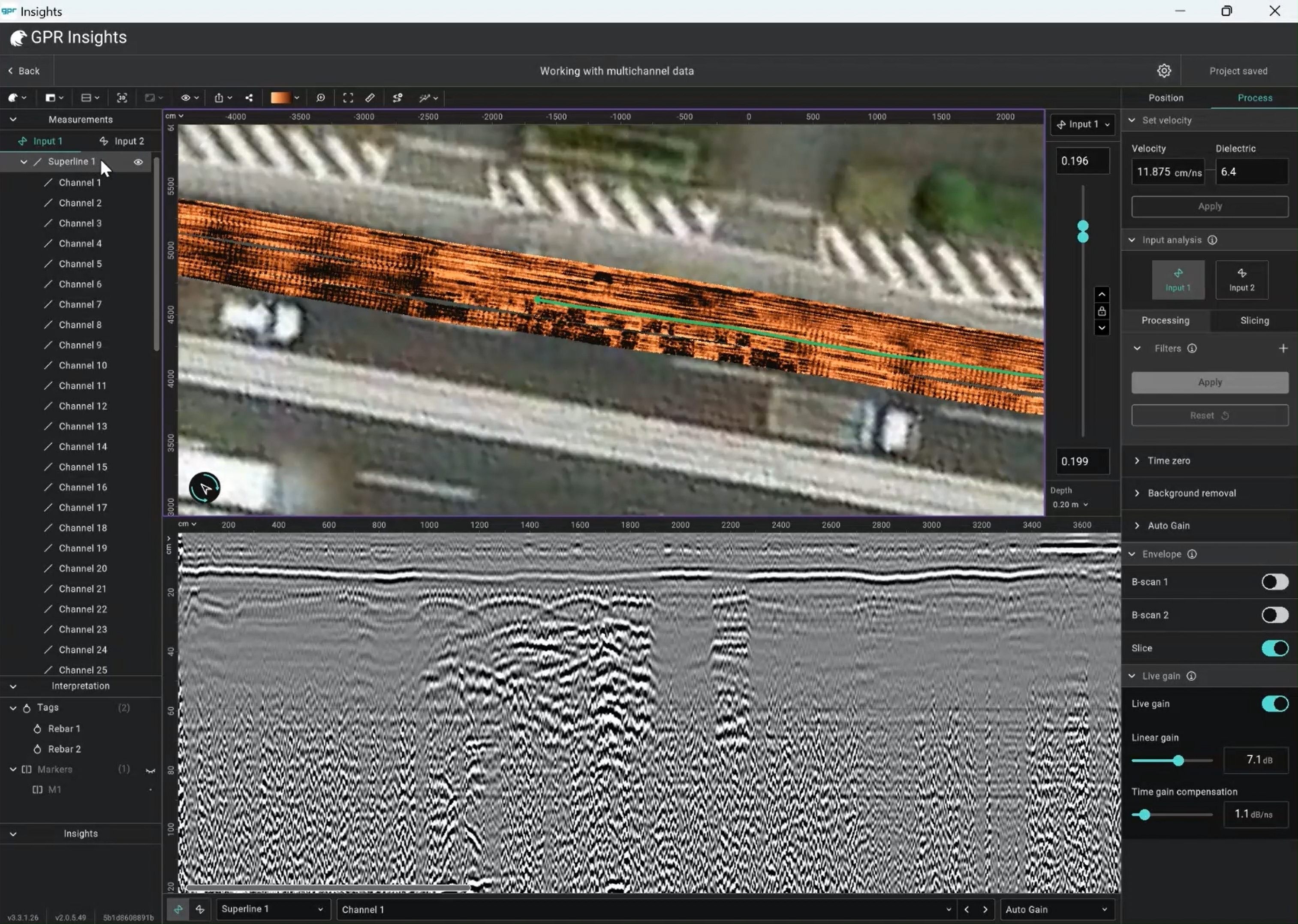
Short clips from our team covering different tools and processes from creating a project to exporting interpretation results.
Answers to commonly asked questions are covered in this section grouped by topic.
Licensing & accounts
Is this license for one device, one user, or many users/devices?
Only one ID / password is provided, which can be used on any computer via the web — but two users cannot access it simultaneously. The standalone version, once installed and activated on a specific device, gets linked to that device and can only be used there. To use Insights on a different machine, it must be unlinked first — contact your local representative or email [email protected].
Can I use the web and standalone versions at the same time?
No — only one version at a time. Trying to access both will display a session error and prevent the second one from running.
What does the GPR Insights free trial offer?
The free trial includes every feature available in the paid subscription. Both the web and standalone versions are available during the trial.
What happens if I don’t renew my subscription?
You will no longer have access to GPR Insights until you resubscribe. Your projects in the cloud remain stored.
Is there an automatic time-out when idle?
Yes — the session automatically closes after 45 minutes of inactivity.
System & data
Do I need a powerful computer to run GPR Insights?
No. To run the web version you only need an internet connection on any standard laptop or PC. The standalone version has recommended requirements — see Chapter 1 for the full system spec.
What is the maximum project size I can have?
Depends on your subscription tier: Standard up to 2 GB, Advanced up to 12 GB, Pro up to 300 GB. The version you are using also matters — the web version performs optimally up to 12 GB, while the standalone limit depends on your device hardware.
Is there a limit on total cloud storage?
Yes, per tier: Standard 200 GB, Advanced 1000 GB, Pro 4000 GB (or 6000 GB for GM8000 users). The storage limit applies only to cloud storage — for the standalone version, only your local free disk space limits you.
Devices & data formats
Does GPR Insights work with data from non-Screening Eagle / Proceq GPRs?
Yes. We support most formats from third-party manufacturers (such as .dzt, .dt) and common industry formats like SEG-Y. When creating a New project → From other, click “click here” to see the full list of supported formats.
Can I use GPR Insights for any GP or GS data set?
Yes. When creating a new project from From Workspace, search for the data set you want to analyse and start visualising 2D and 3D views immediately.
Does GPR Insights support GPS integration for mapping?
Yes. If your GPR system is connected to a positioning device, Insights can load the positioning information. For georeferenced data, you can overlay GPR slices on maps — precise localisation of detected features included.
Does the software support multi-channel GPR systems?
Yes. The software supports multi-channel systems such as the GS9000, the GM8000, and other third-party MCGPR systems.
Export & collaboration
How do I export processed data?
Raw and processed GPR data can be exported in a variety of formats — standard .png image files, .mp4 videos, and .xyza / .laz point clouds.
Is there a way to export images in bulk?
Yes — you can export all images or an .mp4 video of all the B-scans or slices. The exported folder contains both the video file and the individual frames as image files. GeoTIFF images can also be exported in bulk.
Can I share my projects with other team members?
Yes — projects created in GPR Insights can be shared with team members, provided they have a valid GPR Insights license.
Can I collaborate on projects with colleagues in real time?
Yes. Share your session via a link to as many colleagues as you wish and work on the same project simultaneously.
Syncing & file management
Will deleting files from the GS or GP app delete them from Workspace and from Insights?
If you remove files from the GS or GP app, they will indeed be removed from Workspace. However, projects already created in Insights based on those data files will not be deleted unless you delete the project itself in Insights.
If I clear the cache in the standalone version, will my project be deleted?
The project is deleted from local disk, but it remains stored on the cloud and is accessible from the project list — provided it was previously uploaded.
Are my projects automatically synced to the cloud from the standalone version?
No — projects are not automatically synced. You have to manually synchronise by sending changes to the cloud.
If I delete locally stored project files, will I lose my project?
If the project has not been synced to the cloud and the locally stored files are deleted, the project will be lost.
Common issues & solutions
Why am I getting “Encountered internal error. Please contact your administrator”?
This is most often linked to a temporary internet disconnection. Once your connection is stable, you will be able to use GPR Insights again.
Why am I getting “Some features like import and export are unavailable right now”?
This can happen when the connection with the browser is temporarily lost. Refreshing the GPR Insights tab should reconnect and resolve it.
I am trying to install GPR Insights-standalone on a different device but get an error. What do I do?
Each standalone license is linked to a specific device. Contact us to unlink your previous device, and you will be able to install on a new one.
I cannot import third-party data. What format should the data be in the .zip folder?
When creating a New project → From other, a link in “click here” lists every supported data format and tells you which files are required based on the manufacturer.
Start learning GPR theory or jump straight to processing.
4 Lessons49 Glossary terms
What is Ground-Penetrating Radar?
A non-destructive testing technique that uses ultra-wideband electromagnetic pulses to characterise the subsurface and map buried features.
1How it sees through matter
Ground Penetrating Radar (GPR) is a non-destructive testing (NDT) technique that characterises the subsurface and maps subsurface features. A transmitting antenna sends ultra-wideband electromagnetic (EM) pulses into the ground. When a contrast in the dielectric properties exists in the subsurface, part of the EM energy reflects and is received by a receiving antenna. That signal, processed and interpreted, gives information about the structure of the survey area.
Different subsurface materials and man-made targets interact differently with EM waves. GPR can provide valuable insights on its own but because different site conditions can produce similar GPR data, prior information (existing maps, site history, borehole data, other NDT surveys) greatly improves interpretation accuracy by putting the data in context.
Why choose GPR
Non-invasive — no digging or drilling preserves the integrity of the site. High resolution — especially at higher antenna frequencies. Fast acquisition — data is collected rapidly and visualised on site, allowing quick decisions.
2Where it's used in the field
GPR is used across engineering, geology and geophysics. Applications involve man-made (concrete, asphalt and other construction materials) or geological materials. Depth of penetration, target size, type and dielectric properties all vary with the survey, from near-surface civil-engineering scans to geological surveys hundreds of metres deep.
Utility detection
Locate metallic & non-metallic pipes, cables and conduits to avoid damage during excavation.
Concrete inspection
Detect rebars, voids and cracks for structural assessment of slabs, walls and columns.
Bridge inspection
Find reinforcement, cracking, map the asphalt/concrete interface and characterise the condition of the bridge deck.
Pavement inspection
Characterise pavement layers, find thickness and structural risks and plan repairs precisely.
Environmental studies
Water-table mapping and subsurface contamination surveys.
Archaeology
Map buried structures, artefacts and foundations without disturbing the site.
Investigate soil conditions, moisture content and root development.
Glaciology
Measure the thickness of ice layers in glaciers and ice sheets.
Military
Detection of unexploded ordnance (UXO) and others.
Forensics
Locate buried objects and remains in forensic investigations.
How GPR Works
The behaviour of EM waves in matter, propagation, reflection, attenuation, affects what your radar can and cannot see.
1Wave propagation
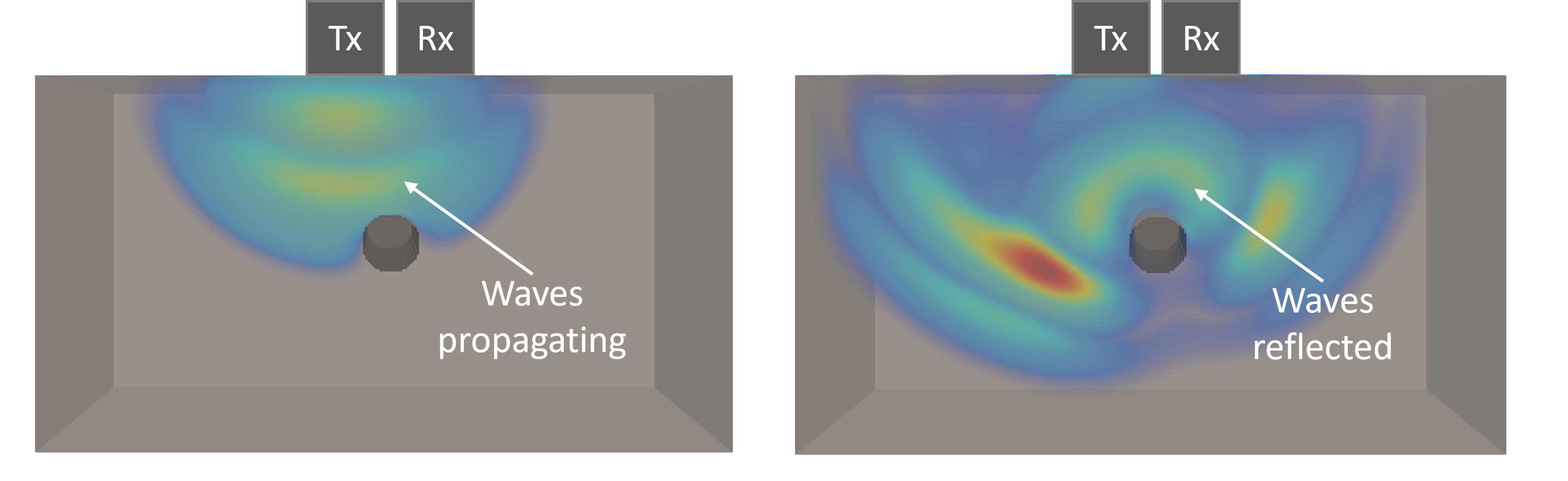
Understanding wave propagation is the foundation of GPR. The transmitter sends EM pulses through a medium. These waves travel through different materials, reflect off objects or boundaries, and return to the surface where a receiver records them. The way the waves propagate,how they travel and interact with materials, determines the signals we receive.
Unlike conventional radar (where waves propagate through air), GPR propagation is strongly influenced by the dielectric properties of the materials in the path. When a contrast in those properties exists, part of the EM energy is scattered or reflected while the rest continues through the medium. The magnitude of the reflected signal depends on the contrast: high contrasts (dry concrete ↔ metal, dry soil ↔ wet soil) produce strong reflections, low contrasts produce weak ones.
Wave propagation. Left: waves emitted from the transmitter propagating into the subsurface. Right: when the waves encounter a dielectric contrast between the target and the surrounding medium, they reflect and travel back to the receiver.
Physics limit, not a system limit
For GPR to detect something, a dielectric contrast must exist. An interface between two materials with the same or very similar dielectric properties produces no reflection or weak reflections and thus can remain invisible to GPR (no instrument can defeat this).
2Dielectric properties
Three properties describe how a material behaves under EM and magnetic fields. They determine how fast the waves travel, how much they reflect, and how quickly they attenuate.
Dielectric constant (relative permittivity, ε): How much a material slows the wave compared to vacuum (where ε = 1). High-ε materials like water or wet soil slow the wave significantly; low-ε materials like dry sand allow faster propagation. Wave velocity is inversely proportional to √ε.
Conductivity (σ): How much EM energy a material absorbs and dissipates as heat. High-conductivity materials (clay, saltwater) cause rapid attenuation, weakening reflections and reducing penetration depth. Attenuation is only one source of loss — geometrical spreading and scattering from subsurface inhomogeneities also bleed energy from the signal.
Magnetic permeability (μ): How a material responds to the magnetic component of the wave. Most GPR-relevant materials (natural and man-made) are non-magnetic, so μ is close to free space.
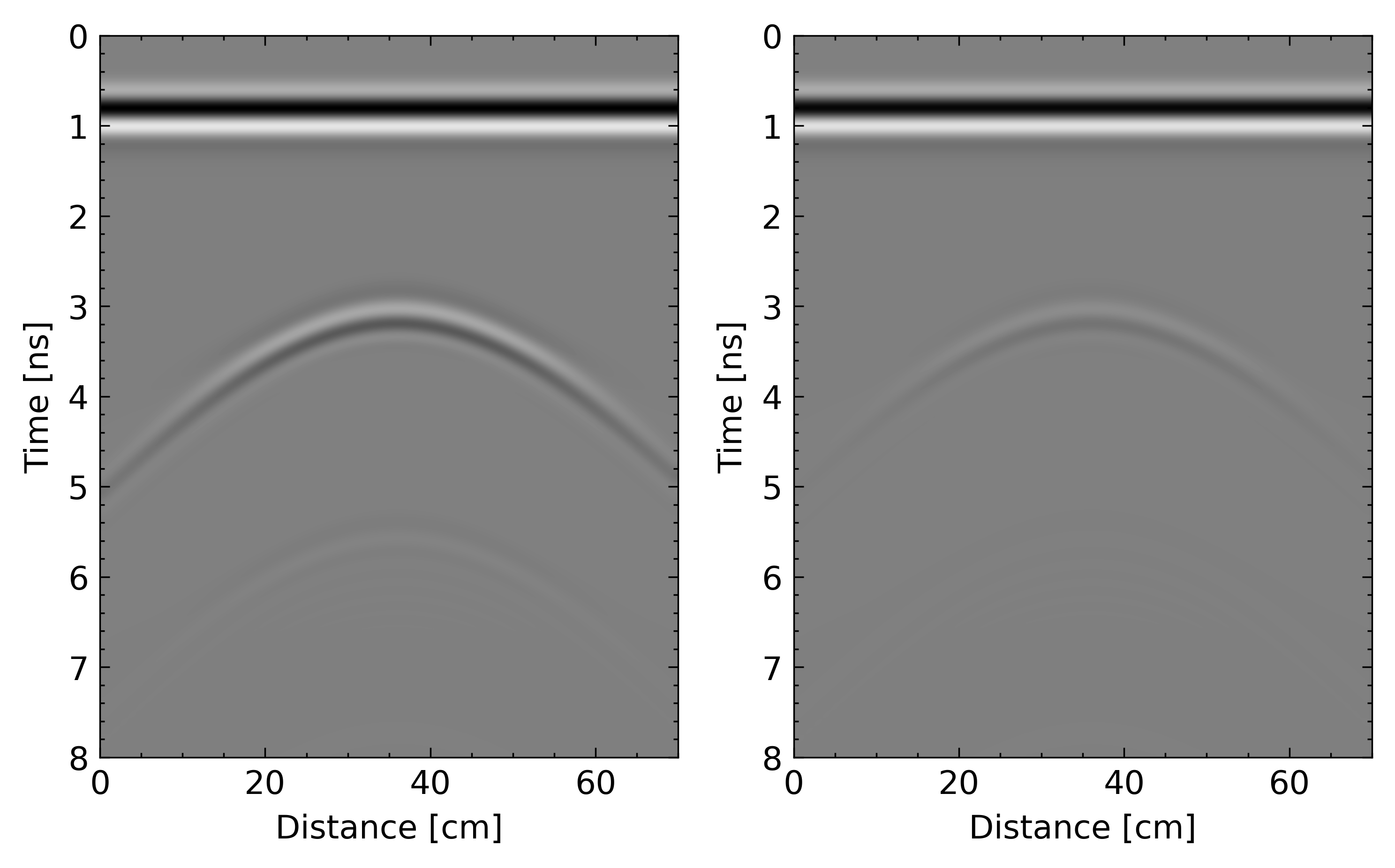
Effect of dielectric constant. A metallic rebar buried at the same depth in two different media. Left: low-permittivity medium (e.g. dry sand). Right: high-permittivity medium (e.g. wet concrete or wet clay). The hyperbolic response from the bar arrives much later in time on the right because the wave propagates more slowly.Effect of conductivity. Response from the same buried rebar. Left: zero-conductivity medium. Right: finite-conductivity medium. The response on the right is much weaker due to attenuation.
Most common materials have a permittivity between 1 and 81. Water has a permittivity around 81 — orders of magnitude above most dry materials — so any moisture in the medium dramatically slows the wave and raises the bulk dielectric constant.
3Frequency, resolution & penetration depth
In GPR, the wave frequency directly impacts both resolution (how small a feature can be resolved) and penetration depth (how far the signal travels). The trade-off is unavoidable:
Ultra-wideband by nature: GPR systems transmit a whole range of frequencies, not just one. Each frequency is transmitted with a different energy that depends on the antenna's characteristics.
Site conditions matter: Wet or clay-rich soils absorb signals quickly, reducing penetration even for low-frequency antennas. Dry soils allow much deeper penetration. Heterogeneities also introduce clutter: higher frequencies give more detail but are more prone to clutter.
Data Representation
From a single trace to a full 3D volume: The common ways GPR data is shown, and what each one is good for.
GPR data is typically displayed in several visual formats that help interpret subsurface features. The most common are A-scans, B-scans and C-scans; less common but very useful are 3D volumetric representations.
1A-scan / Trace / Wiggle
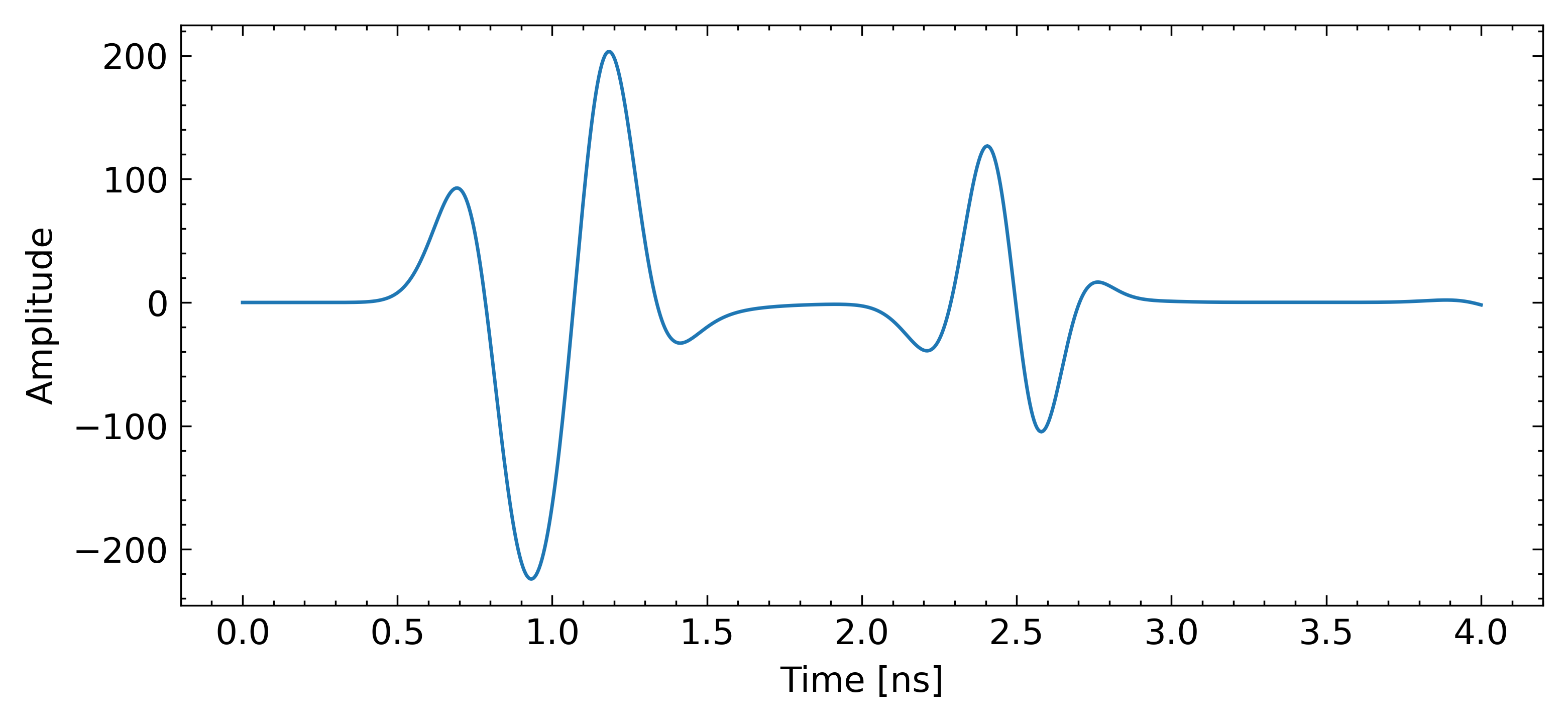
The simplest form of GPR data representation: a 1D plot of signal amplitude (the strength of the reflection, measured as voltage) versus time. An A-scan provides information locally only at the immediate vicinity of the measurement point. It records reflected signals against two-way travel time, which is the time the wave takes to travel from the transmitter to a subsurface target and back to the receiver after reflecting off it.
Time is often converted to depth using an estimate of the EM-wave velocity in the subsurface, so an A-scan can also be shown as amplitude versus depth. The first reflection is usually the surface (plus the direct air wave) whereas subsequent reflections come from interfaces and objects deeper down.
A-scan example. Amplitude versus time for a single measurement.
2B-scan / Radargram
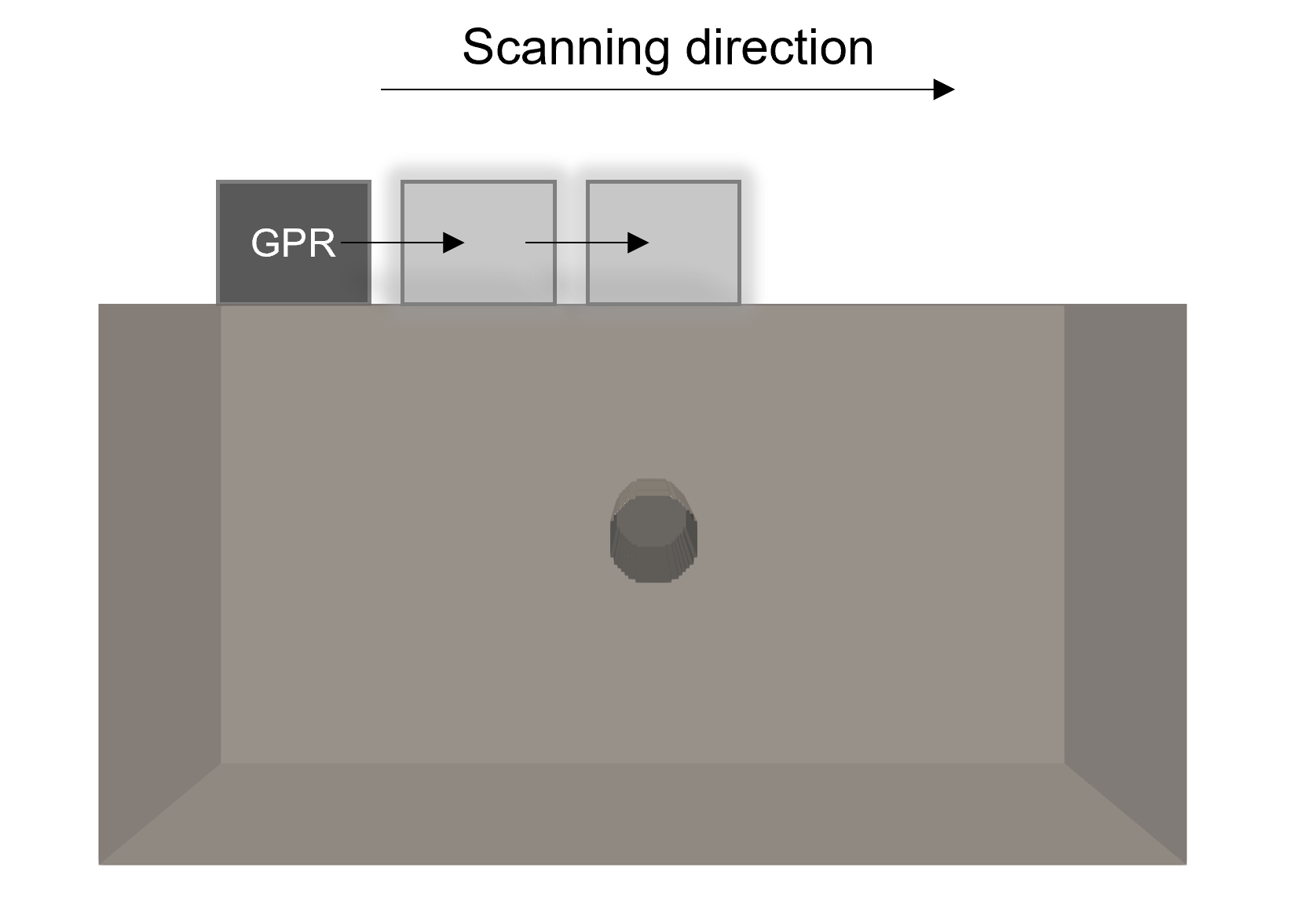
Collecting A-scans at multiple measurement points along a line produces a B-scan (or radargram), a 2D image in time and space that shows how GPR signals reflect from subsurface features along that line. The B-scan is the most widely used representation of GPR data.
It's generated by moving the antenna along a survey path (the scanning direction) while the system continuously emits pulses and records the reflected signals at each point. The Y-axis represents two-way travel time (or depth) and the X-axis represents distance along the survey line. The pixel colour encodes the amplitude of the reflection.
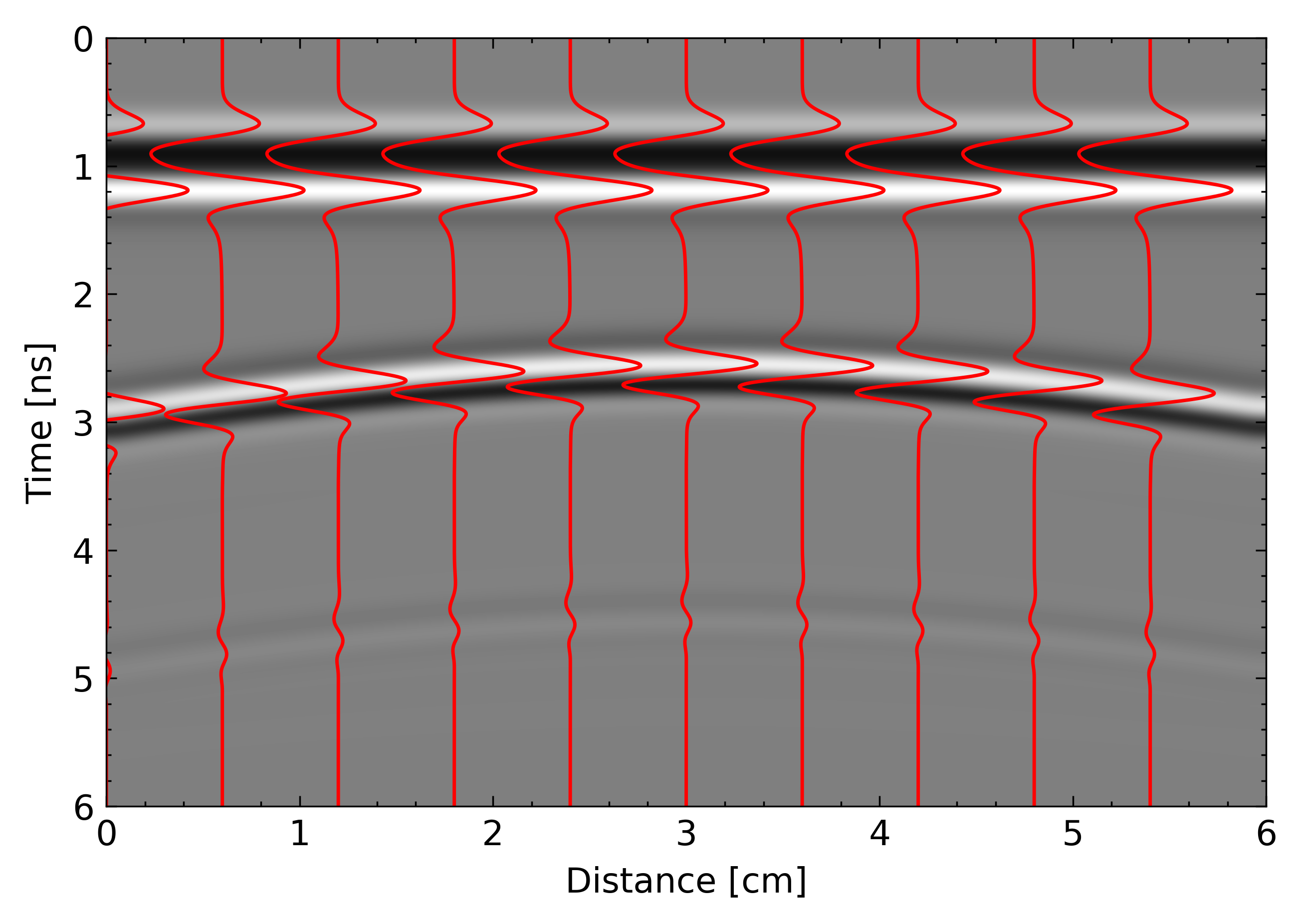
B-scan collection. The GPR system is moved along a survey line at regular intervals above a target, emitting pulses and recording reflections at each step.B-scan example. Recorded signals as amplitude vs. two-way travel time. Several constituent A-scans are overlaid (red) to show how the 2D image is built from individual traces.
Features that might be hard to spot in individual A-scans become easier in B-scans. Hyperbolic reflection patterns appear in the B-scans when scanning perpendicular to the long axis of objects like pipes or rebars, and subsurface layers (e.g. pavement) appear as long flat responses.
3C-scan / Time-depth slice
A time/depth slice is a 2D horizontal image that represents reflections at a specific time or depth in the subsurface. It's essentially a horizontal slice of the subsurface, providing a plan view of features at that depth.
Slices are generated from a grid of GPR survey lines collected over an area. The data from multiple lines are combined into a 3D dataset, from which horizontal slices at different depths are extracted. Each slice covers a particular depth or time range, its slice thickness. X- and Y-axes show horizontal position and the plotted values are signal amplitudes.
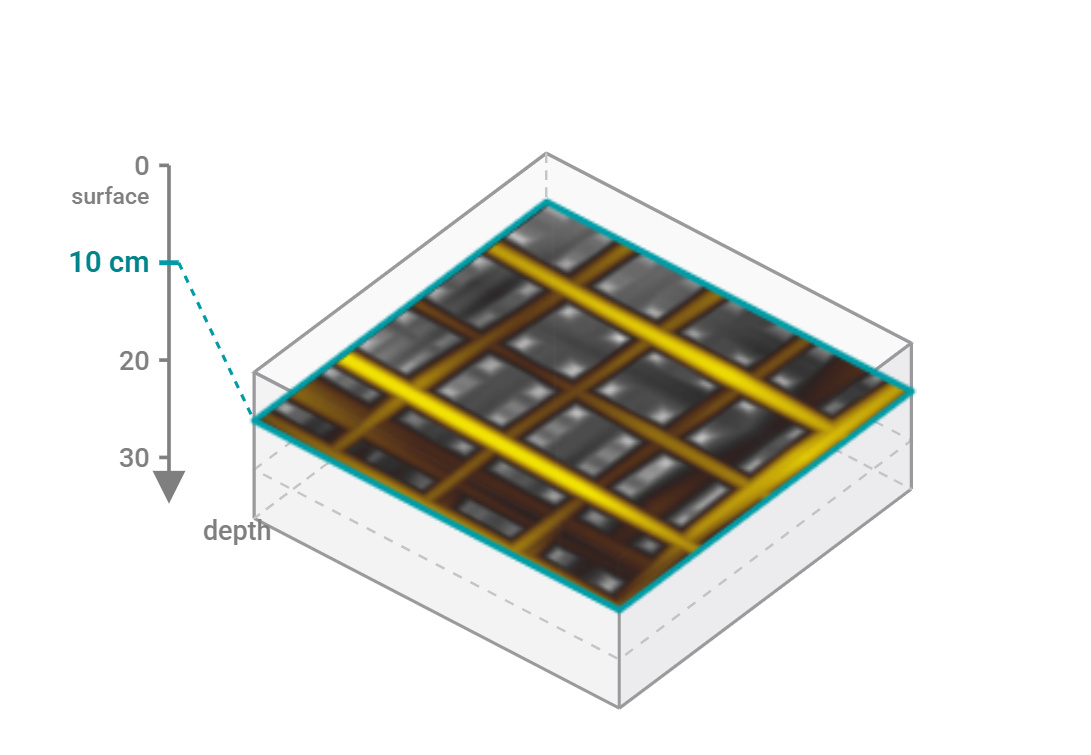
Slice comparison. A horizontal slice showing a rebar grid at 10 cm depth.
43D volumetric representation
The full dataset with every line in the survey grid can be combined to generate a 3D volume and analyse features in all three dimensions rather than via individual cross-sections or slices. However, this is a computationally demanding process.
Data Processing
Raw GPR data is often noisy and weak in amplitude and thus requires some form of processing.
1Why we process
Raw GPR data often contains noise and clutter, and signals are weak — making it difficult to identify and interpret subsurface features directly. Processing improves data quality and enhances the visibility of important features.
Noise & clutter reduction: GPR systems pick up noise from EM interference and unwanted reflections from surface and subsurface objects (clutter). Processing helps remove or minimise it so meaningful reflections become easier to analyse.
Signal enhancement: Deep objects produce weak signals that can be hard to detect in raw data. Gain and similar tools enhance weaker signals so they become visible in B-scans.
Position correction: Subsurface objects can appear in the wrong location in raw data. Processing replaces reflections at their correct subsurface position.
2Time-zero correction
"Time zero" is the moment the transmitter starts emitting. Accurate depth interpretation requires knowing where time zero is, but instrumentation delays mean its exact value isn't directly available. Time-zero correction shifts the responses so that t = 0 corresponds to the surface reflection. It's usually the first processing step applied.
The optimal time-zero value depends on the GPR instrumentation and the antenna separation. Common reference points include: the first break (when the receiver starts recording the direct wave), the time of the positive or negative peak of the response, or the first zero amplitude point between the first positive and negative peak.
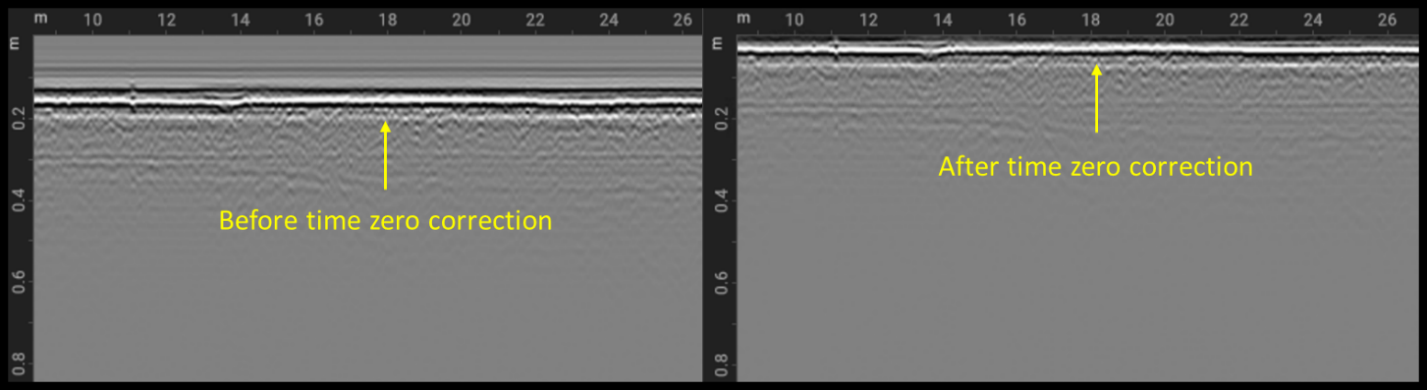
Time-zero correction. Left: the direct-wave response sits at ~0.16 m. Right: after correction, the same response sits at 0 m.
3Background removal
Background removal suppresses coherent system noise (horizontal "bands" running across the entire B-scan) and removes the direct air wave (transmitter → receiver) and direct ground wave (the air–subsurface interface). Target signatures are often masked by these direct-wave responses, so removing them enhances other events.
The most common implementation subtracts the mean A-scan of all A-scans in a B-scan from every A-scan in that line. Variants exist that use only a subset of traces or a narrower time window, depending on the dataset.
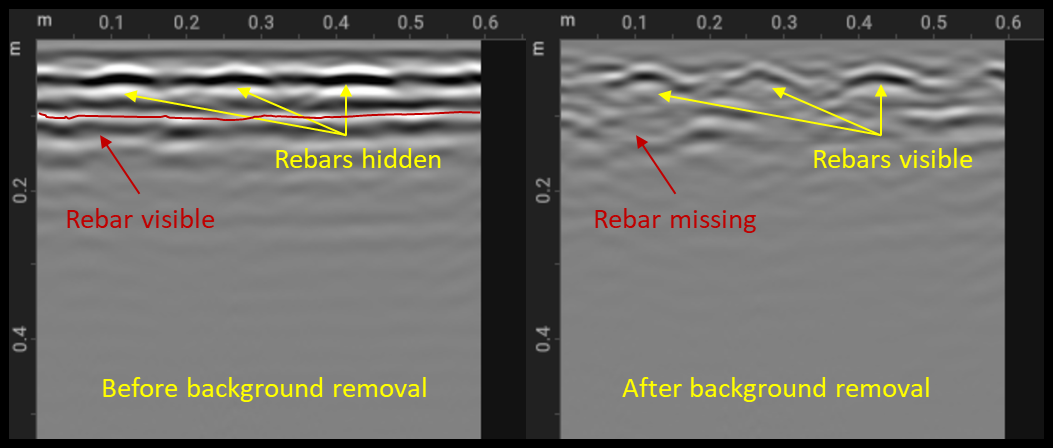
Background removal. Left: raw B-scan over a concrete slab with a rebar grid — the direct wave and horizontal events from rebars scanned parallel to their long axis are visible; other responses are masked. Right: after background removal, the previously masked hyperbolic responses (from rebars scanned perpendicular to their long axis) are now visible.
Note
Background removal also strips genuinely flat reflections that may matter — e.g. layer interfaces. Always check the raw data before applying this filter.
4Gain adjustment
As EM waves travel through the subsurface they attenuate, so signals returning from deeper targets are weaker than those from the surface. Gain compensates by amplifying later-arriving signals (deeper targets) and weak responses from small dielectric contrasts. Gain is usually a non-linear operation: the amplification increases with time. Note that gain changes the frequency content as well as the amplitudes and shapes of responses.
Constant gain: Same amplification across the entire B-scan.
Linear gain: Increases linearly with depth.
Exponential gain: Increases exponentially with depth.
Automatic Gain Control (AGC): Dynamically adjusts signal amplitudes based on the local strength of the incoming signal.
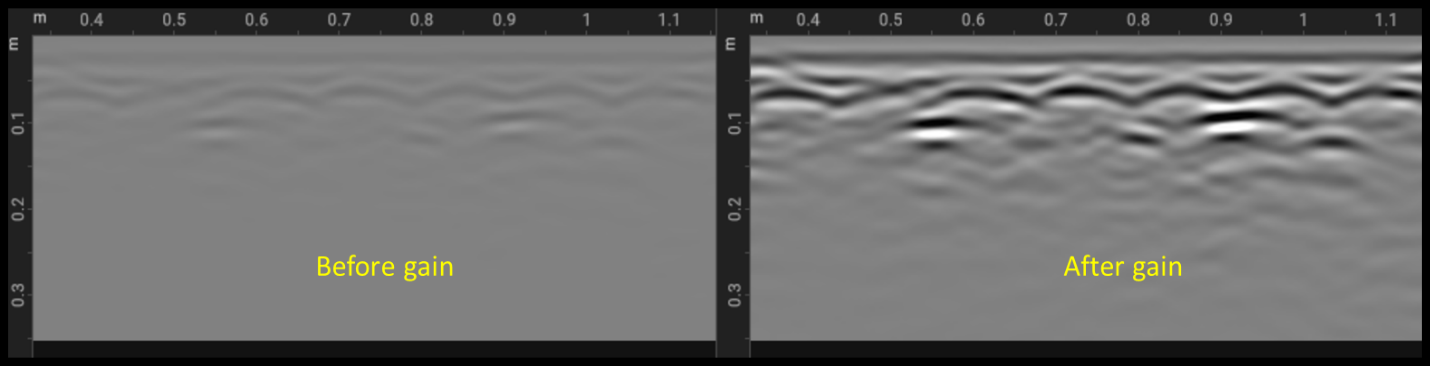
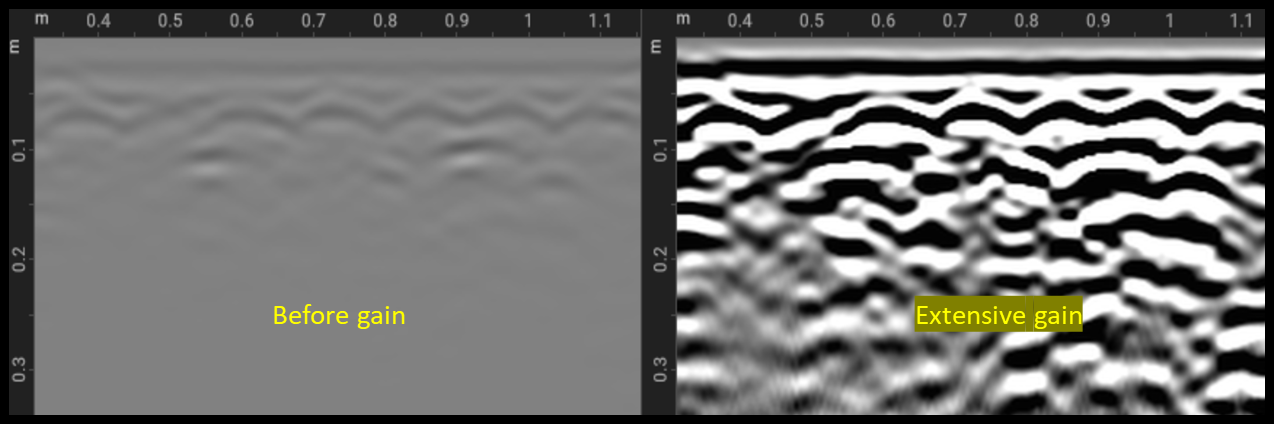
Gain. Left: B-scan before gain — responses are faint. Right: after gain — hyperbolas and a flat-event response are clearly visible.Overgain. Applying too much gain saturates the signal, amplifies noise and erases the amplitude differences that distinguish strong from weak reflectors.
Best practice
Begin with low gain or auto-gain and adjust further with TGC. Always evaluate B-scans before and after to make sure the processed data still represents the subsurface accurately. Time-dependent gain is usually more effective than constant for deeper objects.
5Frequency filtering
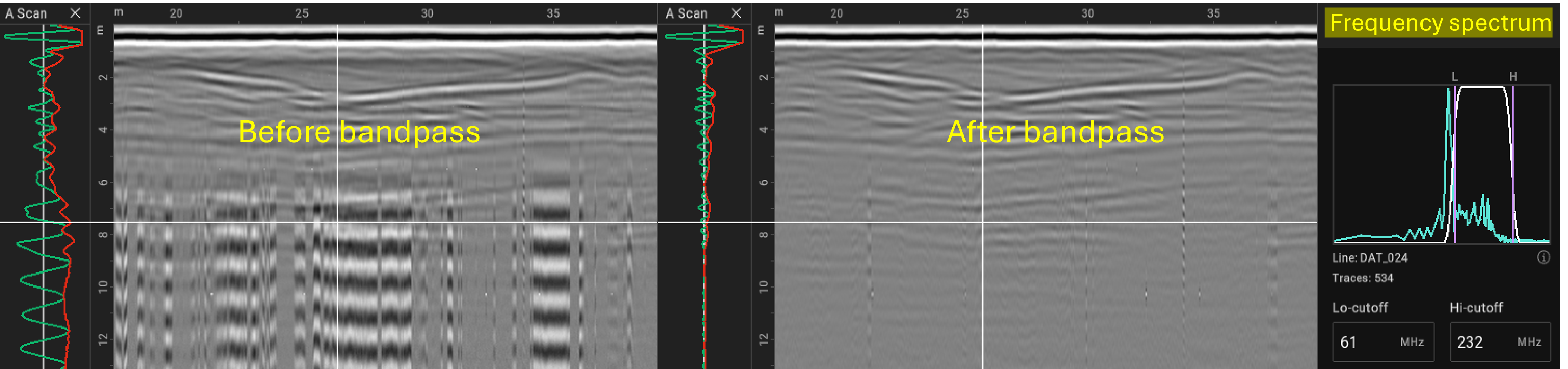
Frequency filtering is the most common signal-processing technique. A high-pass filter suppresses frequencies below a threshold, a low-pass filter suppresses frequencies above a threshold and applying both yields a band-pass filter that keeps only a chosen frequency range.
Filtering can be implemented in the time domain (e.g. moving-average smoothing) or, more commonly, in the frequency domain via a Fourier transform. Real data always contains some noise. Without filtering it can dominate the meaningful signal.
Frequency filtering. Left: raw data with visible noise. Right: after filtering, some of the noise has been suppressed.
Note
Aggressive frequency filtering can suppress frequency content that belongs to meaningful reflections and lead to data misinterpretation.
6Migration
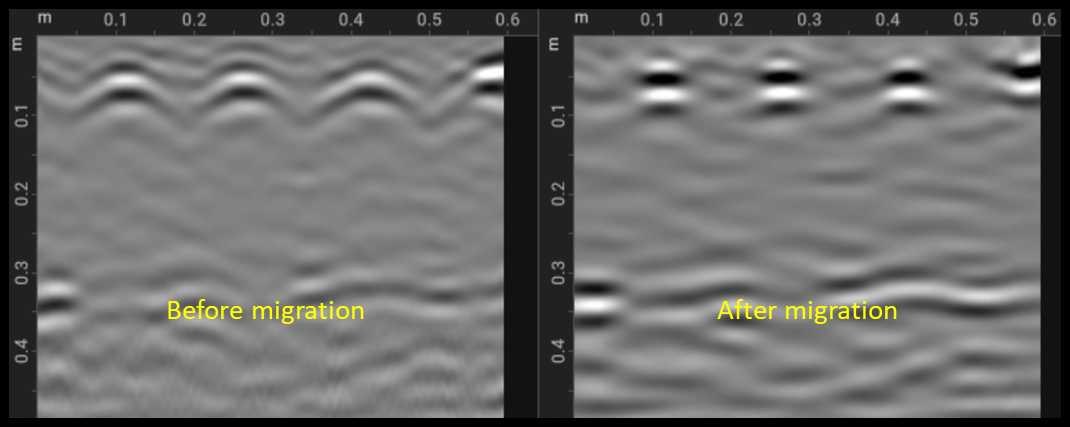
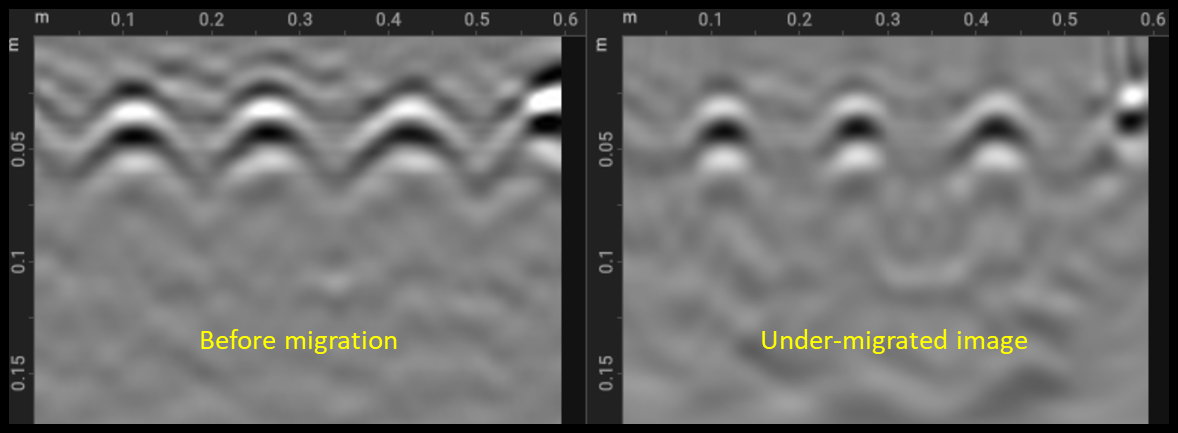
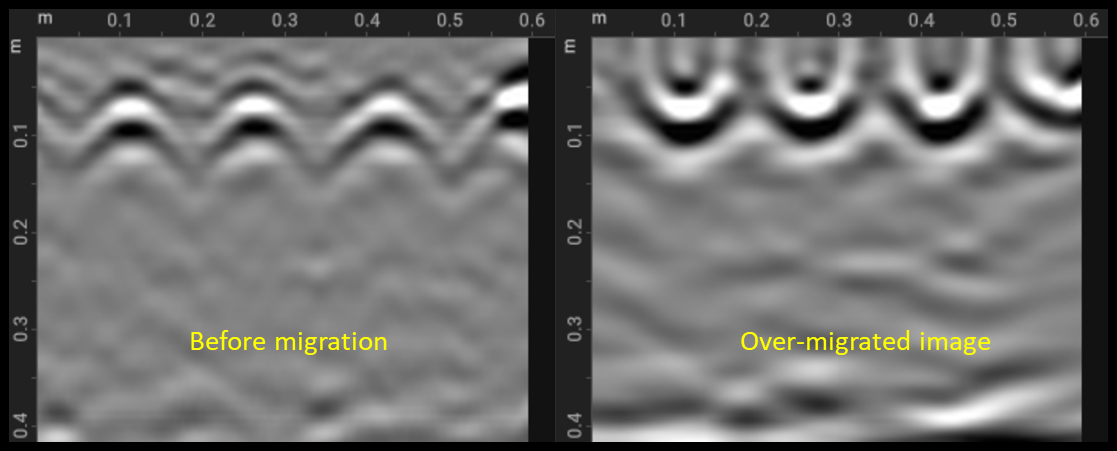
In a raw B-scan, a point object appears as a hyperbola because the two-way travel time changes with antenna position. Migration is an imaging technique that transforms the unfocused B-scan into a focused one. It collapses hyperbolic responses back to a point and places targets at their correct spatial location, so the reconstructed image resembles the true geometry of the subsurface.
Migration requires a good estimate of the EM-wave velocity in the medium. Pick velocity from a known target if you can.
Correct velocity. Left: B-scan before migration. Right: after migration with the correct velocity — hyperbolas have collapsed to points at the true target locations.Under-migration. When the velocity used is too low, hyperbolas don't fully collapse and the focused image still shows residual curvature.Over-migration. When the velocity is too high, hyperbolas invert and form characteristic "smile" patterns — a clear artefact, not a physical feature.
7Hilbert transform
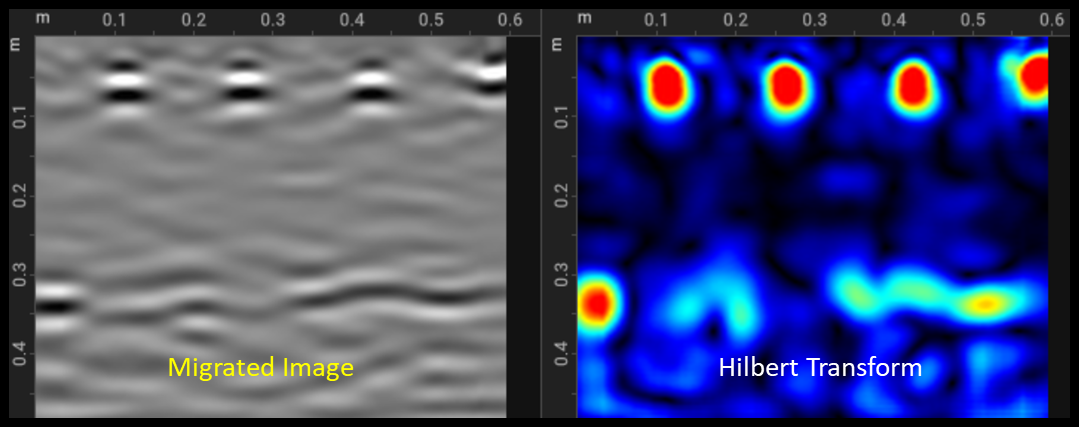
Hilbert transform is commonly applied after migration. It computes the envelope of the signal, a wavelet that contains both positive and negative lobes becomes a wavelet with only positive components. This removes oscillations and makes target interpretation considerably easier on the eye.
Hilbert transform. Right: the envelope of the migrated B-scan — oscillations replaced by their amplitude, simplifying visual interpretation.
Glossary
Glossary of terms
Showing 49 of 49 terms
3D view Display
Specific to GPR Insights — the display of trenches surrounding the GPR slice data.
A-scan Display
A 1D representation of radar data showing the amplitudes of reflected waves as a function of time or depth.
Amplitude Signal
The strength or intensity of the reflected radar signal.
Antenna Hardware
A device that converts electrical signals into electromagnetic waves and vice versa — the part of the GPR system that transmits and receives EM waves.
Array Hardware
A GPR system consisting of multiple transmitter and receiver units.
Attenuation Physics
The gradual weakening of radar signal strength as it travels through the ground.
Automatic Gain Control (AGC) Processing
A type of gain control that adjusts signal amplitudes based on the strength of the incoming signal.
B-scan Display
A continuous series of A-scans along a line that creates a 2D image in time and space, generated by moving the antenna along a linear survey path.
Background Removal Processing
A processing filter that removes system coherent noise (bands) and the direct air and ground wave responses that mask other targets of interest.
Bandpass Filtering Processing
A filter that passes signals within a specific frequency range while attenuating frequencies outside that range.
Bands Signal
Horizontal events present across the entire length of a B-scan.
Bandwidth Physics
The range of frequencies transmitted by a GPR system. Higher frequencies give better resolution but shallower penetration; lower frequencies see deeper at the cost of resolution.
C-scan Display
A horizontal plan-view image produced by combining data from multiple B-scans at a particular depth.
Clutter Signal
Unwanted reflections in GPR data that obscure subsurface features of interest.
Dielectric constant Physics
A property of a material affecting how radar waves travel through it. The higher the dielectric constant, the slower the wave. Most materials fall in the range 1–81.
Direct air wave Signal
The initial signal that travels directly from the transmitter to the receiver without interacting with subsurface objects.
Envelope Signal
A smooth curve that traces the positive extremes of the oscillating GPR signal (positive and negative amplitudes).
Frequency domain Signal
A representation showing how the signal's energy is distributed across different frequencies.
Gain compensation Processing
A method used to increase the visibility of weaker deeper reflections in GPR data by boosting their amplitude.
Ground Penetrating Radar (GPR) Core
A geophysical method using electromagnetic pulses to image the subsurface and map buried objects.
High-pass filter Processing
A filter that passes signals above a threshold while attenuating components below that threshold.
Horizontal resolution Physics
The ability of GPR to distinguish between objects close together horizontally.
Hyperbolic response Signal
The characteristic hyperbolic pattern in GPR data representing a point object beneath the surface.
Hyperbola fitting Processing
A technique used to estimate the EM-wave velocity of the background material using hyperbolic responses, enabling target-depth estimation.
Low-pass filter Processing
A filter that passes signals below a threshold while attenuating components above that threshold.
Marker Workflow
A marked point of interest tied to a specific position along the measurement line (not depth). May carry a comment.
Migration Processing
A process of correcting GPR data to place reflected signals in their proper subsurface location, collapsing hyperbolas to points.
Noise Signal
Unwanted signals from external sources (electrical equipment, environment) that affect data quality and obscure meaningful reflections.
Penetration depth Physics
The maximum depth the radar waves can "see" — determined by system frequency and material composition.
Pulse Signal
A short burst of electromagnetic energy emitted by the GPR system.
Receiver Hardware
A transducer device that captures electromagnetic signals.
Reflection Physics
The return of radar waves to the surface after hitting a dielectric contrast between materials.
Relative permittivity Physics
See Dielectric constant.
Sample Signal
A single signal value measured at a specific time.
Scattering Physics
A phenomenon where a radar signal disperses in multiple directions — typically caused by heterogeneous materials or surface roughness. Excessive scattering introduces noise.
Signal-to-Noise ratio (SNR) Signal
The ratio between radar signal strength and background noise — affects clarity.
Slice Display
Or time/depth slice. See C-scan.
T-scan Display
Multi-channel-only. Combines B-scan information from each channel in a direction perpendicular to the scanning direction, forming a cross-sectional image.
Tag Workflow
A marked object of interest in B-scan data at a specific depth and X/Y location — used to mark rebars, backwalls, ducts. May include a known diameter.
Time domain Signal
A representation showing how a signal changes with time — the most intuitive way to represent GPR data.
Time Gain Compensation (TGC) Processing
A type of gain that increases signal amplitude over time to balance the attenuation of deeper signals.
Time window Workflow
The period during which the GPR system records reflected data.
Topographic correction Processing
Adjusting GPR data to account for surface elevation changes.
Trace Display
See A-scan.
Transmitter Hardware
A transducer device that sends electromagnetic waves.
Velocity Physics
The speed at which electromagnetic waves travel through different subsurface materials.
Vertical resolution Physics
The ability to distinguish between objects located at different depths beneath the surface.
Wiggle Display
See A-scan.
Wobble removal Processing
A filter that removes low-frequency components in GPR data.